Money, accounts & staff
Expenses, doctor commission & accounting
Recording expenses, referral commission rules, paying doctors and referrers, automatic journals, manual vouchers, ledgers, trial balance, income statement and balance sheet
Who it is for:AccountantOwnerManager
On this page
The clinic's money work has three parts: day-to-day expenses, commission and payouts for doctors and referrers, and the full accounting books (journals, ledgers, statements). Bills, receipts, refunds, expenses, doctor payouts and salaries all post to the books automatically. The accountant only enters what nothing else records — the owner's capital or a cash deposit to the bank, for example — as manual vouchers.
Who can do what: the Accountant and Manager record expenses, pay doctors and see every accounting screen. Only the Accountant (and the owner) can post manual vouchers and change the chart of accounts. Only the Owner sees the Rebuild books button.
Recording expenses
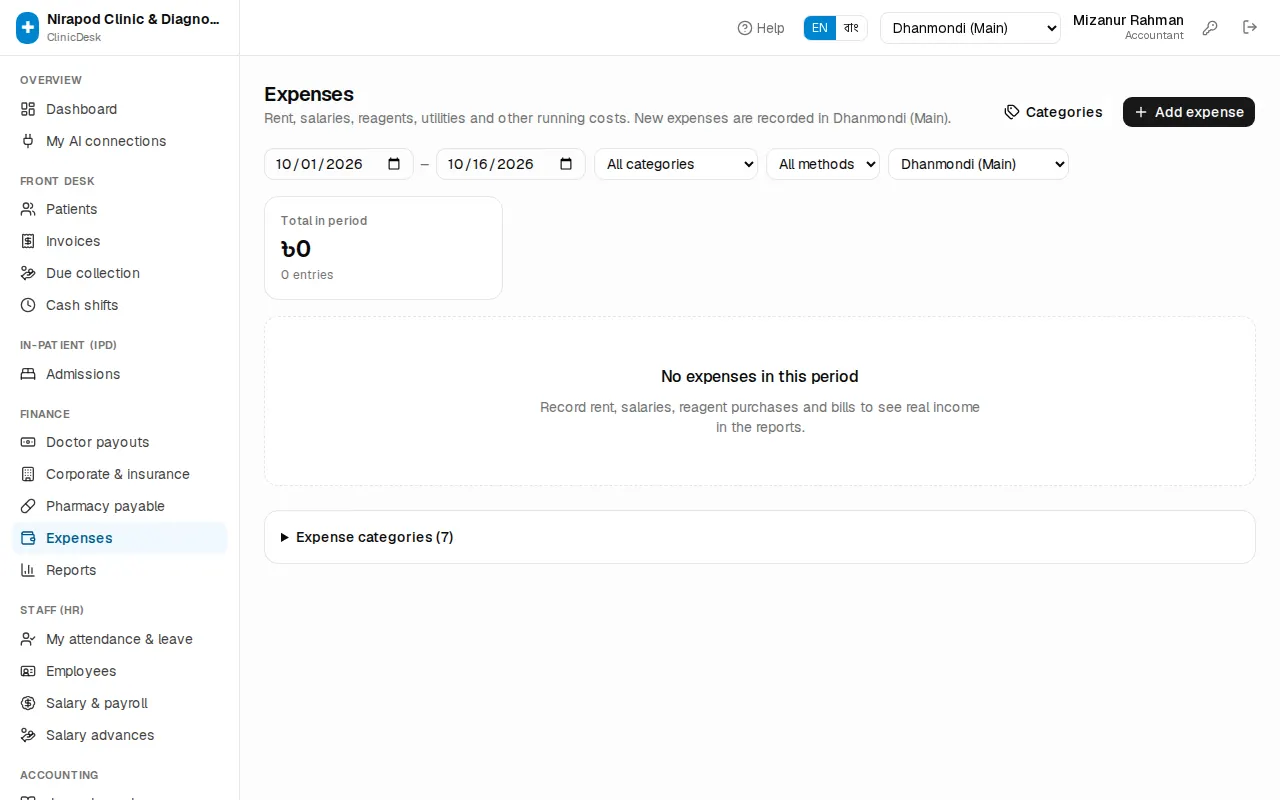
Go to Finance › Expenses in the sidebar. The page header says which branch new expenses go to — switch branch from the header if needed.
- Press Add expense.
- Choose the Category (rent, electricity, reagents …).
- Enter the Amount (৳).
- Pick Paid by — cash, bKash, bank and so on.
- Check the Date (today is filled in).
- In Paid to write who was paid, e.g. DESCO or landlord. Add a short Note, e.g. October electricity bill.
- Save. "Expense recorded" appears and the expense gets a number.
Use the filters at the top for the date range, All categories and All methods. The Total in period card shows the total for the selection. Click the pencil on a row to correct it, the bin to delete it.
Expense categories
The Categories button at the top jumps to the Expense categories section at the bottom of the page.
- New category: type a name in the last row (e.g. Generator fuel) and press Add.
- Rename: type the new name and press Rename.
- Only a category with no expenses can be deleted.
Every category gets its own expense ledger in the chart of accounts automatically.
Referral commission rules
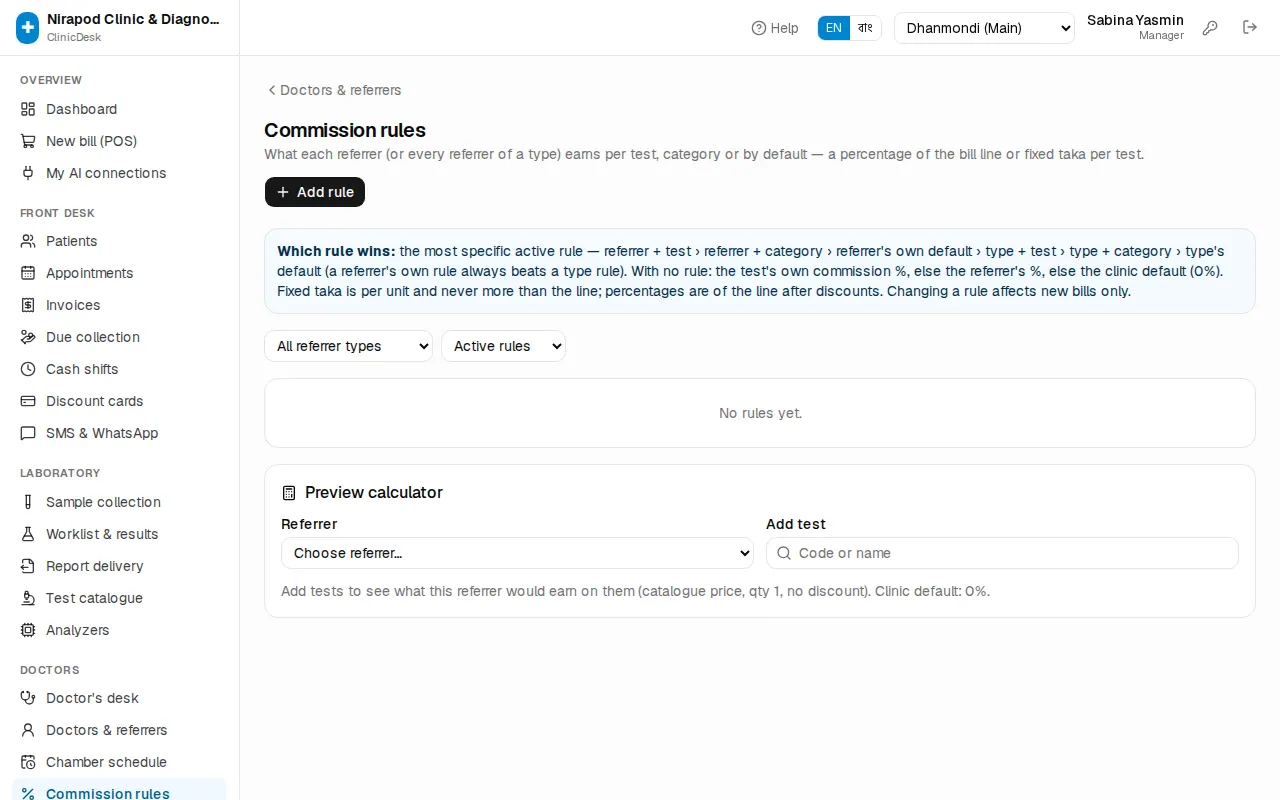
What each doctor or referrer earns on each test is set on Doctors › Commission rules. Owners, managers and receptionists can open it.
Adding a rule
- Press Add rule. The New commission rule window opens.
- Under Who, choose:
- One referrer — then pick the doctor or referrer from the list.
- Every referrer of a type — e.g. every Village doctor (RMP) or every Agent.
- Under For, choose All tests, A category or One test (search by test code or name).
- Under Commission, choose Percent of the bill line or Fixed taka per test, then fill in Percent (%) or Taka per test (৳).
- Save. "Rule added" appears.
Which rule applies
The blue box on the page explains Which rule wins: the most specific active rule. The order is: referrer + test › referrer + category › the referrer's own default › type + test › type + category › the type's default. With no rule at all, the test's own commission % is used, else the referrer's %, else the clinic default.
- Percentages are of the line after discounts.
- Fixed taka is per unit and never more than the line.
- Consultation, bed and medicine lines never earn through an "All tests" or category rule — only through a rule for that exact service.
To stop a rule, press Deactivate on its row; Activate turns it back on. The filters at the top show All referrer types, Active rules, Inactive rules or All rules.
Preview calculator
At the bottom is the Preview calculator. Pick a Referrer and add a few tests in Add test — it shows what that referrer would earn on each test and which rule it came from. Use it to check a new rule before the next bill.
Paying doctors and referrers
Go to Finance › Doctor payouts in the sidebar. One table shows what each doctor earned and is owed:
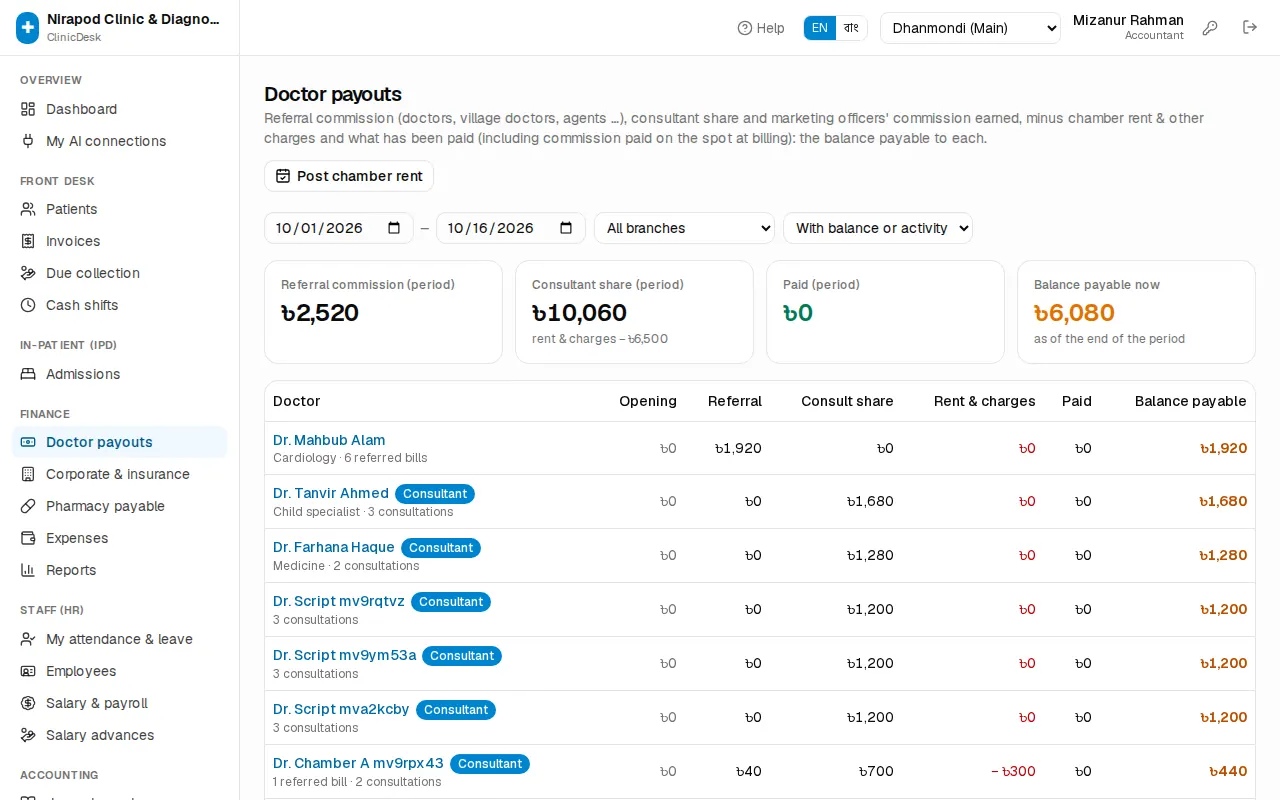
- Opening — what was owed before the period.
- Referral — commission for patients they sent.
- Consult share — the doctor's part of consultation fees.
- Rent & charges — chamber rent, advances and other deductions.
- The cards on top: Referral commission (period), Consultant share (period), Paid (period) and Balance payable now.
Change the dates at the top. The drop-down switches between With balance or activity and All doctors.
Paying one doctor
- Click the doctor's name in the table. The Doctor / referrer statement opens, with every bill behind the numbers.
- Check the Closing balance payable.
- Press Record payout (it is disabled when nothing is owed).
- Amount (৳) is filled with the full balance — lower it for a part payment.
- Choose Paid by, set For period from and to, and put the bKash TrxID or cheque number in Note.
- Press Pay & print voucher. The payout voucher opens in a new tab — print it and get the doctor's signature.
To reprint an old voucher, click its number under Payout history on the statement. Print at the top prints the whole statement.
Chamber rent and other charges
- Monthly rent for everyone: on the payouts page press Post chamber rent, pick the Month and press Post rent. Every consultant with a chamber rent on their profile is charged; anyone already charged for that month is skipped.
- One doctor's charge: on the statement press Add charge. Kind is Chamber rent, Advance or Other charge. Chamber rent needs a Month (rent) — one rent per month.
Remove a wrong charge with the bin icon in the Charges (rent, advances …) section.
Automatic journals and manual vouchers
Accounting › Journal vouchers lists every accounting entry. Bills, receipts / refunds, doctor payouts, doctor charges, expenses, company settlements, salaries, salary advances and payments to the pharmacy all post on their own.
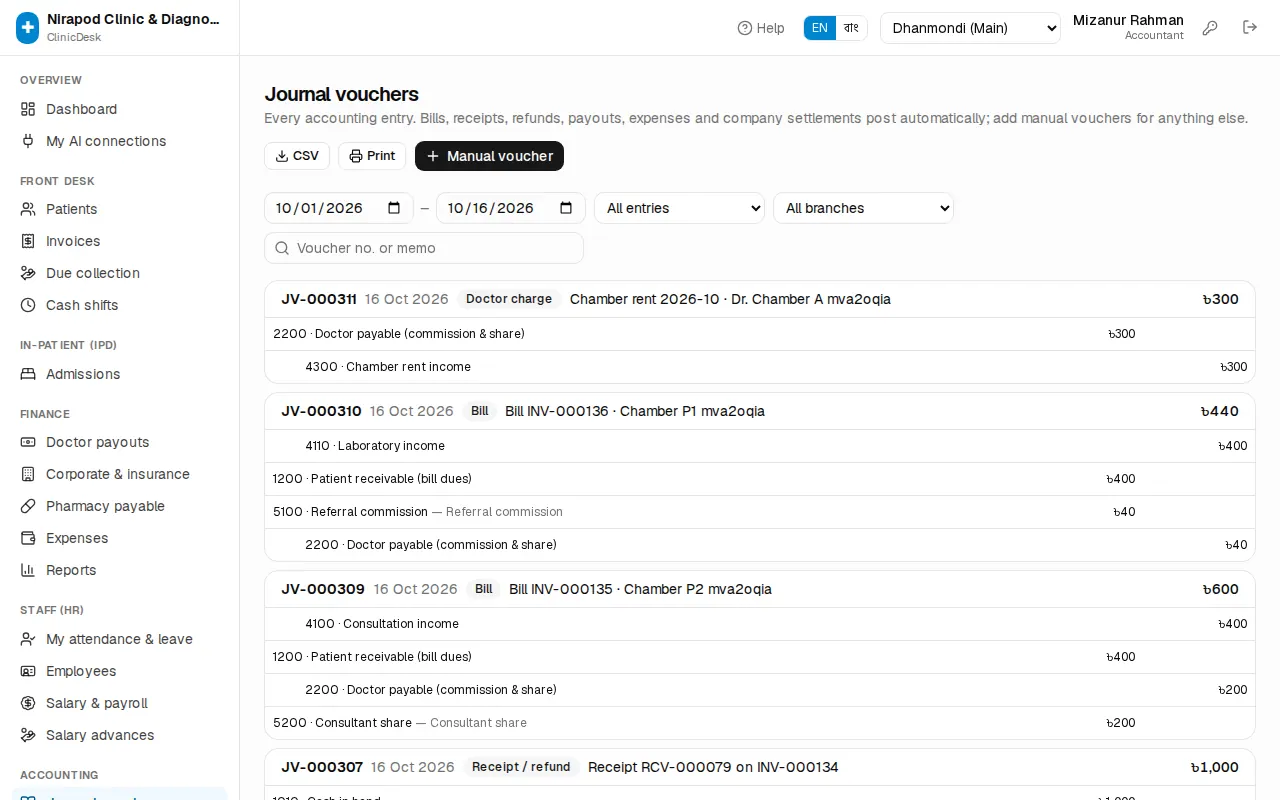
Filter by Automatic, Manual vouchers or one source type, or search by Voucher no. or memo. Open an entry and use Open source document to jump to the bill or expense behind it.
Posting a manual voucher
Use manual vouchers for the owner's capital, opening cash and bank balances, cash deposited to the bank and similar.
- Press Manual voucher. The Manual journal voucher window opens.
- Set the date, the branch (or No branch (head office)) and a Memo, e.g. Owner's capital introduced. It will not save without a memo.
- On each line pick a ledger from Choose ledger… and enter a Debit or a Credit. Press Line for more lines.
- When debits equal credits, a green Balanced shows. Otherwise the difference shows in red and the button stays disabled.
- Press Post voucher.
Open a manual voucher to Edit or Delete it (a deleted voucher stays in the audit log).
Ledgers and the chart of accounts
On Accounting › General ledger pick a ledger and a date range. The Opening, Debits, Credits and Closing cards sit above every transaction with a running balance.
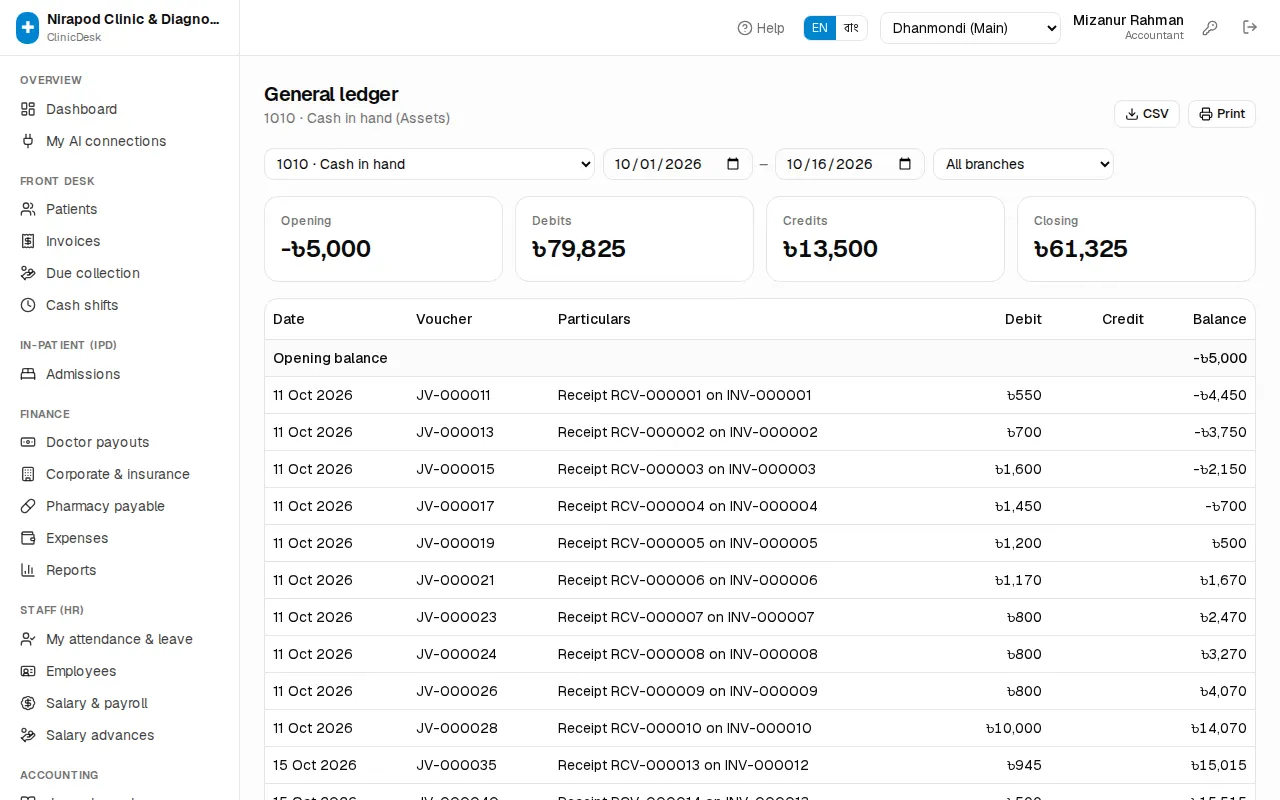
Accounting › Chart of accounts lists every ledger with today's balance. Ledgers with a lock are used by automatic posting; their type cannot be changed.
- New ledger: the Ledger button → Code, Name, Type and, if needed, Parent (optional).
- Press Hide next to a ledger you no longer use — it stays in reports but is not offered on new vouchers.
- Rebuild books (owner only): re-posts every automatic entry from bills, receipts, payouts, expenses and settlements. Manual vouchers are kept. This is the fix when the trial balance does not balance.
Trial balance, income statement and balance sheet
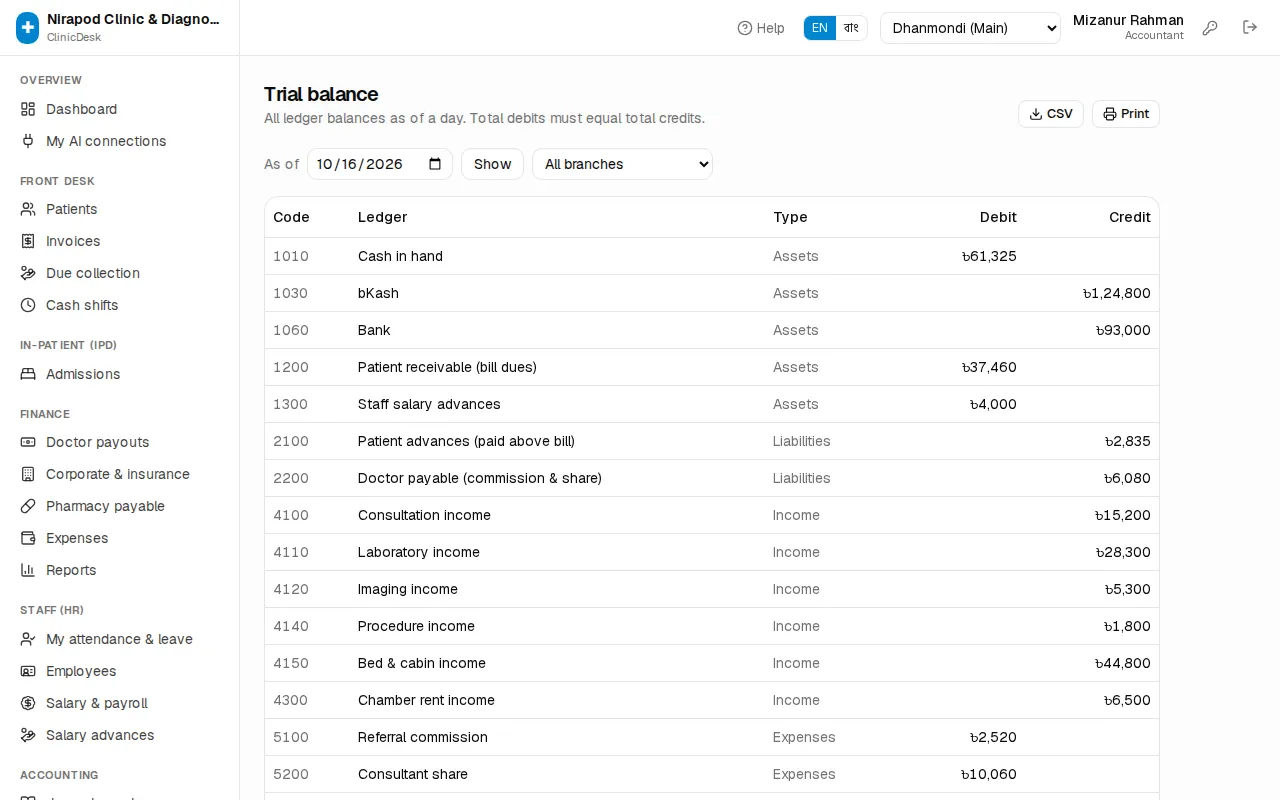
- Trial balance: every ledger balance as of a day. When total debits equal total credits the total row shows ✓ balanced. If not, a warning appears — ask the owner to use Rebuild books on the chart of accounts.
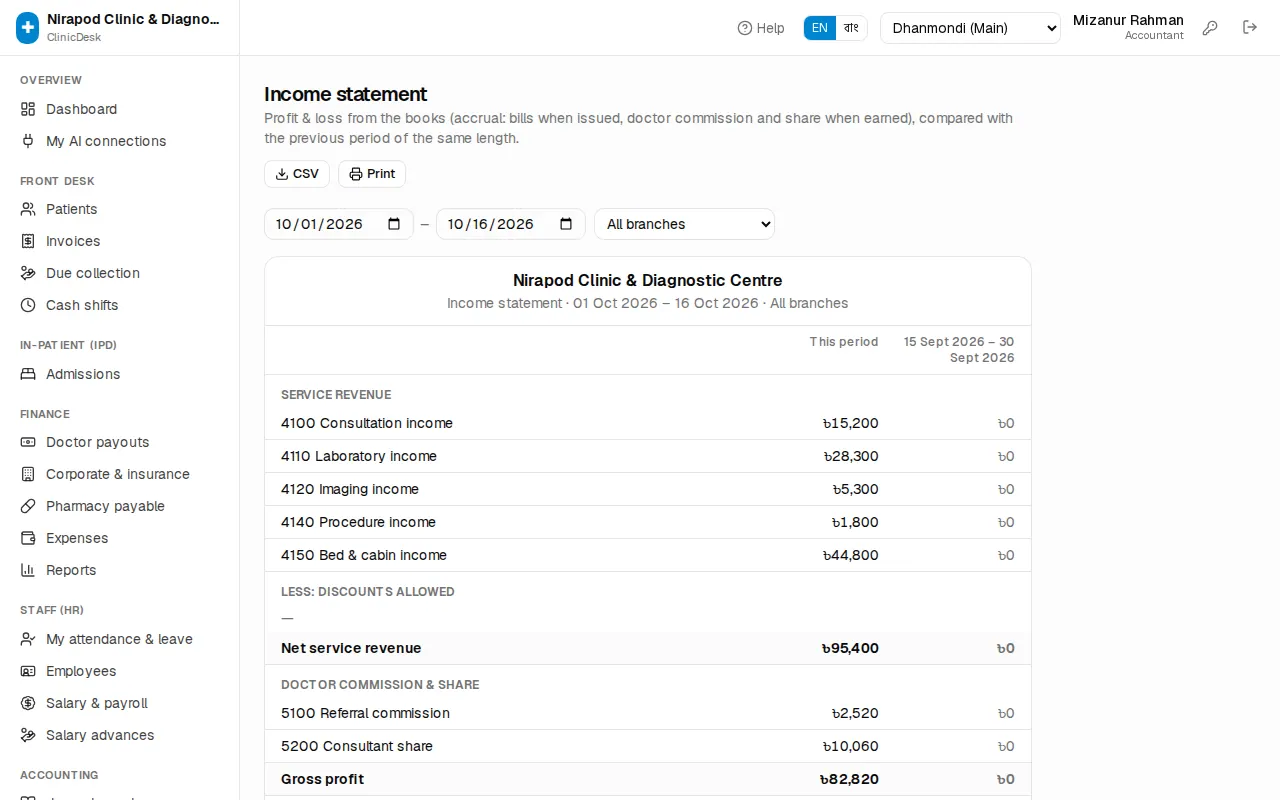
- Income statement: profit and loss for the period — Net service revenue, Gross profit, Net profit — next to the previous period of the same length. It is on an accrual basis: revenue on the day a bill is issued, commission on the day it is earned.
- Balance sheet: on a given day, what the clinic owns (Assets: cash, receivables), owes (Liabilities: doctor payable, patient advances, VAT) and the owner's stake (Equity). When assets equal liabilities + equity the page says it is balanced.
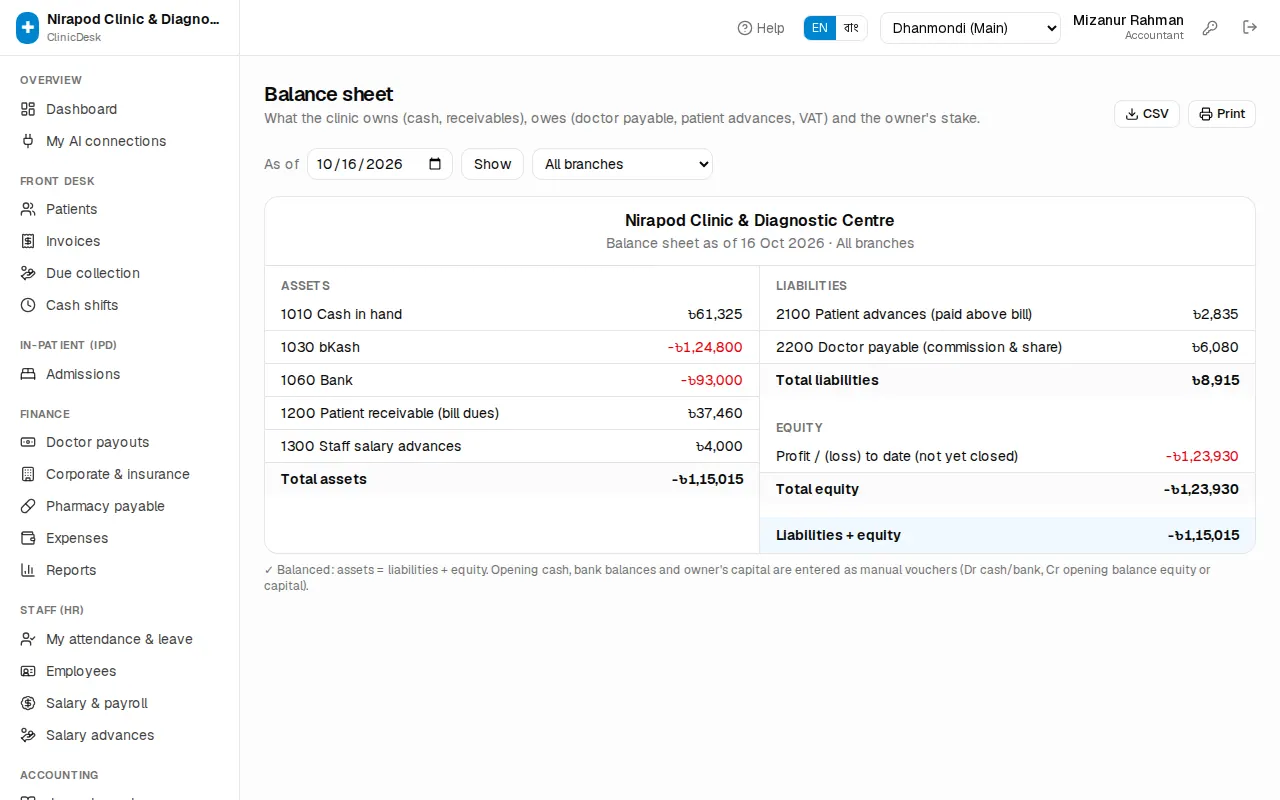
Every one of these pages has a branch picker (with more than one branch), a CSV download and a Print button.
For a cash-basis view of daily income and spending use Reports › Income summary — see Reports.