Front desk & billing
Memberships & corporate billing
Discount card plans, selling, renewing and printing cards, card discounts on bills; corporate and insurance clients, contract prices, billing to a company, statements and settlements.
Who it is for:ReceptionistManagerOwnerAccountant
On this page
Many patients do not pay the full price themselves. Some buy the clinic's discount card (health card / family card) and get a discount on every bill. Others have their employer or insurer pay, settled in one go at the end of the month. The first half of this chapter covers cards, the second half companies.
- Selling cards: receptionist, manager and owner. Setting up card plans: manager and owner.
- Adding companies, contract prices and settlements: manager, accountant and owner. Receptionists bill to a company at the counter.
Set up card plans
You need at least one plan before you can sell cards. A plan says what the card costs, how long it lasts, how many people it covers and the discount on each kind of service.
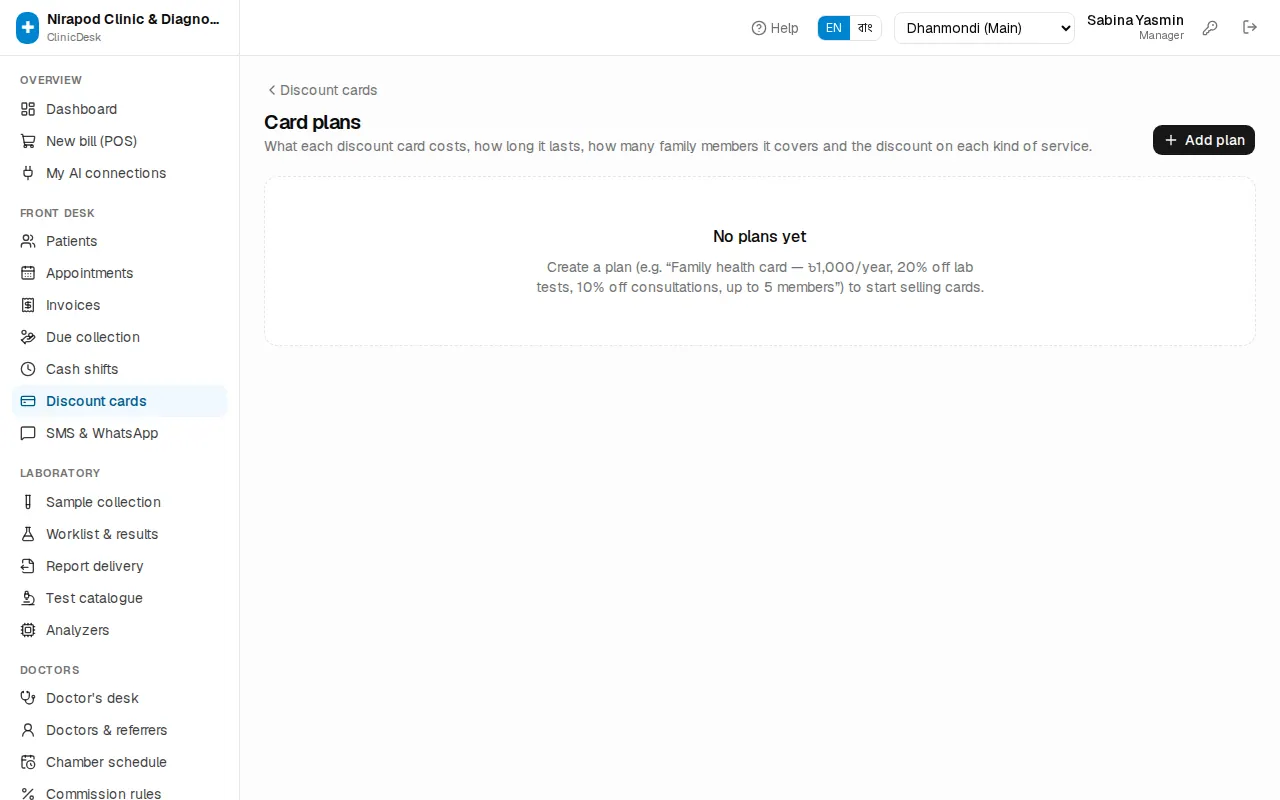
- Open Front desk › Discount cards and press Plans.
- Press Add plan.
- Fill in:
- Plan name \* — e.g. "Family health card".
- Card fee (৳) and Valid for (days) — usually 365.
- Lab / imaging discount % — lab tests, imaging, packages.
- Consultation discount %.
- Other discount % — procedures, bed, other (not medicine).
- Members per card — more than 1 for family cards.
- Save. You see "Plan added".
To stop selling a plan, edit it with the pencil icon and untick On sale.
Sell a card
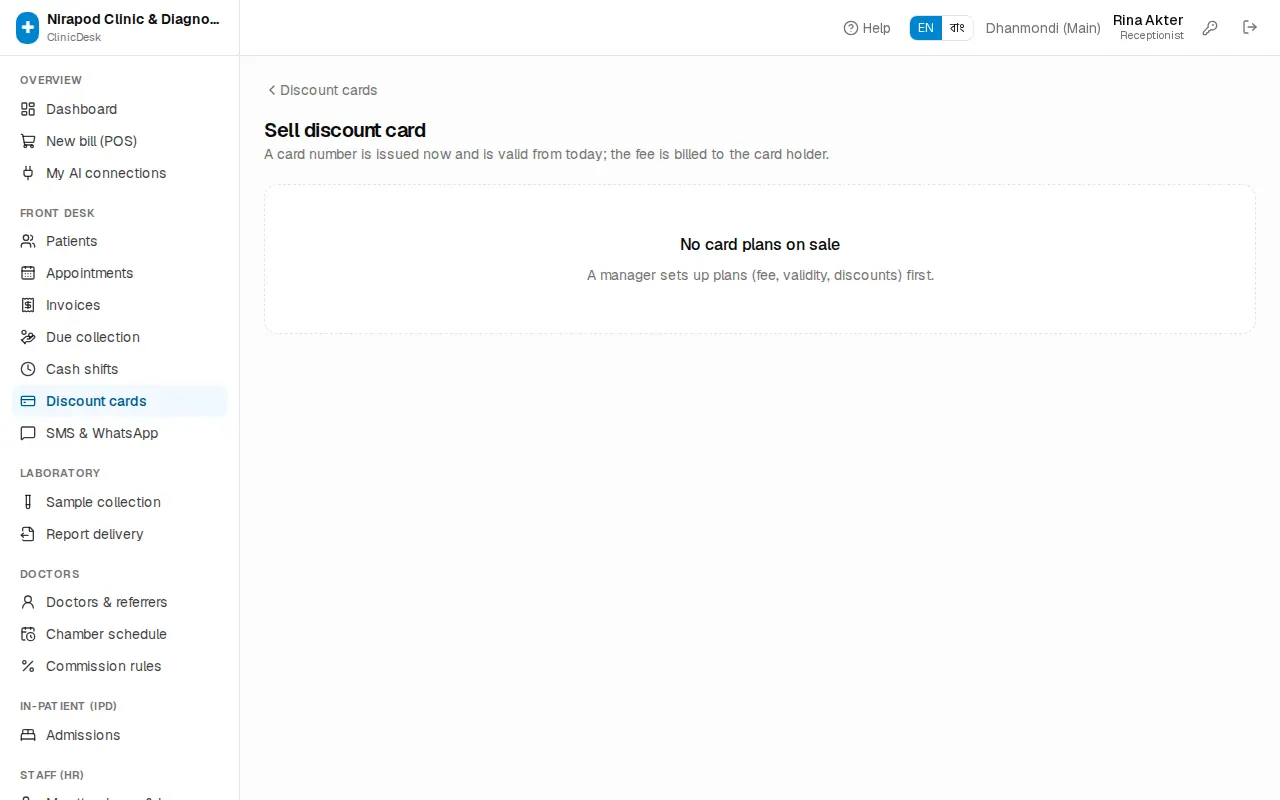
- On Discount cards press Sell card. (The Sell discount card button on a patient profile leads here too.)
- Pick a Plan — each shows its validity and the maximum members.
- Card holder — search and pick the patient (press New to register someone new).
- With Collect the fee (…) now ticked, pick the payment method (for anything but cash add the TrxID / reference). Untick it and the fee bill is saved as due; collect it later from the bill.
- Press Sell card · ৳…. You see "Card MEM-000012 sold · bill INV-…".
The card is valid from today, and the fee becomes an ordinary bill in the card holder's name — it shows in invoices and in your cash shift.
The card page: members, renewal, printing
On the Discount cards list search by Card no, member name, MRN, phone…. The top shows the number of Valid cards and those Expiring in 30 days.
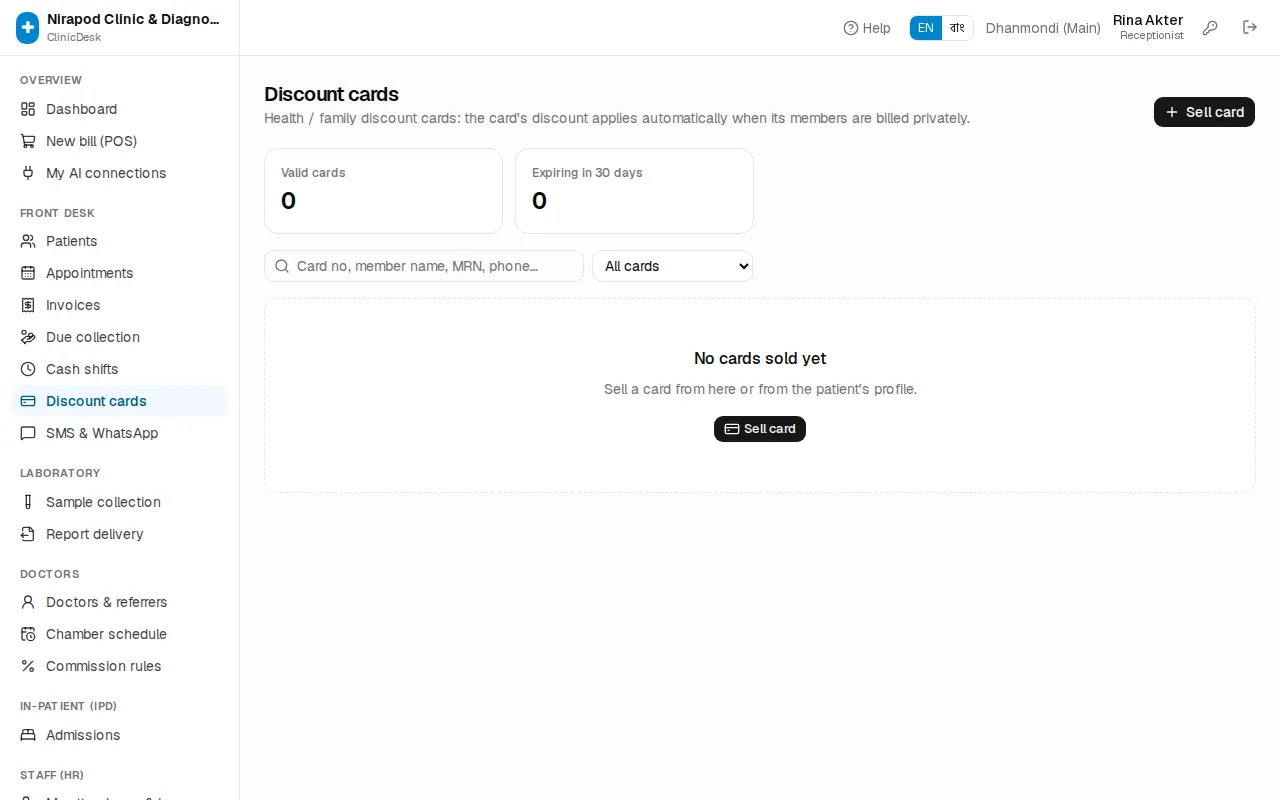
Click a card number to open the card page with its Status, Valid from, Valid to and Members. The buttons:
- Print card — the card to hand to the patient.
- Add member — another family member on a family card. Same card number and validity; no extra fee.
- Renew — sets a new validity and makes a new fee bill for the first member. Press Renew card.
- Cancel card — needs a Reason. All members lose the discount.
The icon on a member's row removes that person from the card. Fee bills at the bottom lists all the card's fee bills.
Card discount on a bill
The card discount applies by itself — nothing to type.
- At the billing counter pick a card member as the patient.
- A green box under the patient says "Card MEM-… applied:" and the discount on each kind of service.
- Each line shows "card −৳…" and the right side shows incl. card discount.
- Don't want the card on this bill? Untick the green box — it then says "Card … not applied".
The card discount only works on Patient (private) bills, not on bills to a company. Expired or cancelled cards give no discount.
Corporate and insurance clients
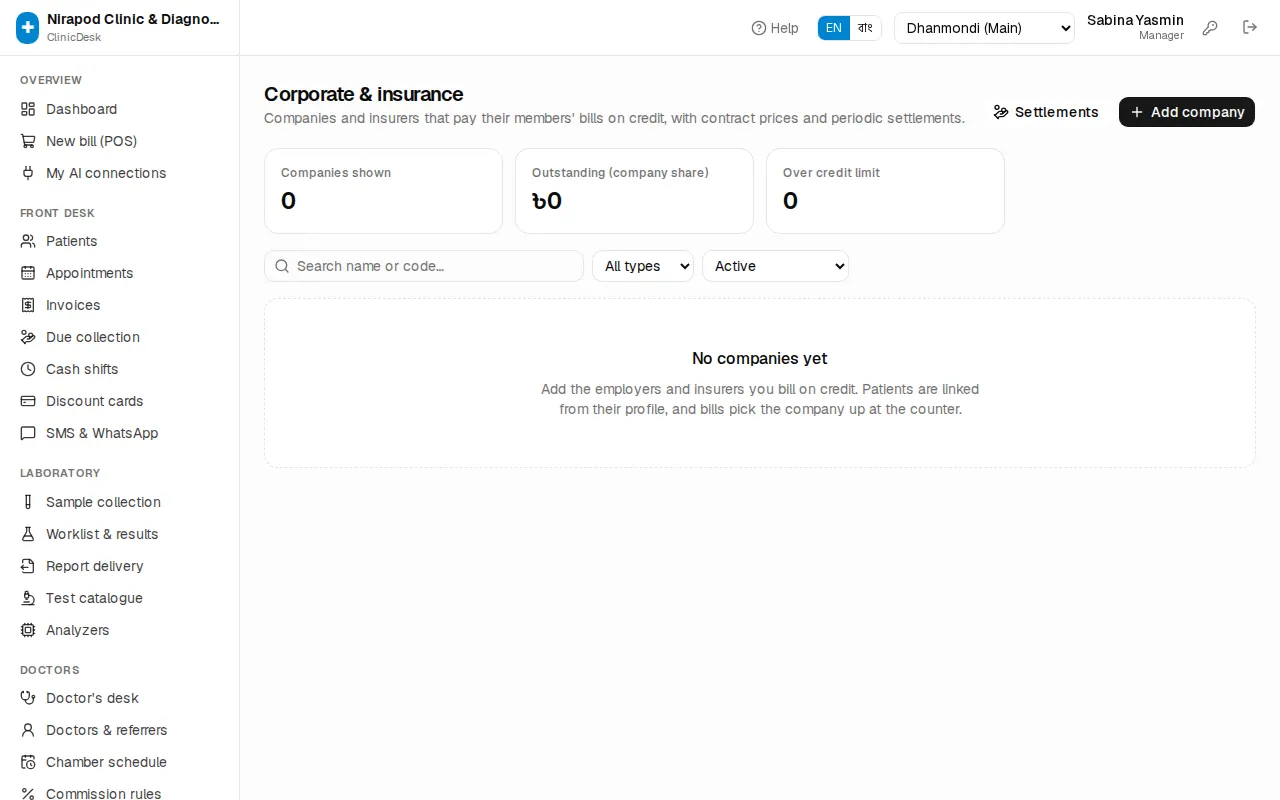
Add the employers and insurers that pay their members' bills on credit.
- Open Finance › Corporate & insurance in the sidebar.
- Press Add company.
- Fill in:
- Name \*, Type (Corporate (employer) or Insurance), Short code.
- Contact person, Phone, Email, Address.
- Discount % — on catalogue prices where no contract price is set.
- Company pays % — e.g. 80 means the patient pays the other 20% (co-pay). 100 if the company pays everything.
- Credit limit (৳) — how much may stay unsettled; empty means no limit. A manager may exceed it.
- Needs authorisation / claim no. on every bill — usually ticked for insurers.
- Save.
The list shows each company's Terms, Members, Open bills, Outstanding and Credit limit use. At the top: the total Outstanding (company share) and how many are Over credit limit.
Linking a patient to a company: on the patient profile press Edit, choose the company under Bills to (corporate / insurance) and enter the Employee ID / policy no. The Members tab on the company page lists linked patients.
Contract prices
When a company has agreed special prices for some tests:
- On the company page press Contract prices (n).
- Type the price in Contract price (৳) on the service's row and press the save icon next to it. Difference shows the gap to the catalogue price.
- To enter many at once press Import CSV: one service per line,
CODE,price(price in Taka). A blank price or-removes the contract price.
A contract price replaces the catalogue price, with no further discount. Zero-priced services such as consultation or bed keep their own fee (priced at billing).
Billing to a company
- At the billing counter pick the patient. If they are linked to a company, the Payer box already shows "… (patient's company)". You can also choose another company or Patient (private).
- A blue box shows Company pays …% and any contract discount.
- If the company needs an authorisation number, type it in Authorisation / claim no. \*. The bill will not save without it.
- Add the services. Under Total you see Company pays (…) and Patient pays.
- Take payment only for the patient's share — more than that gives Payment is more than the patient's share.
- Save. The saved screen shows "Company pays … · patient …".
The company's share is not part of the patient's due; it stays as the company's Outstanding until a settlement comes in.
Settlements: money from a company
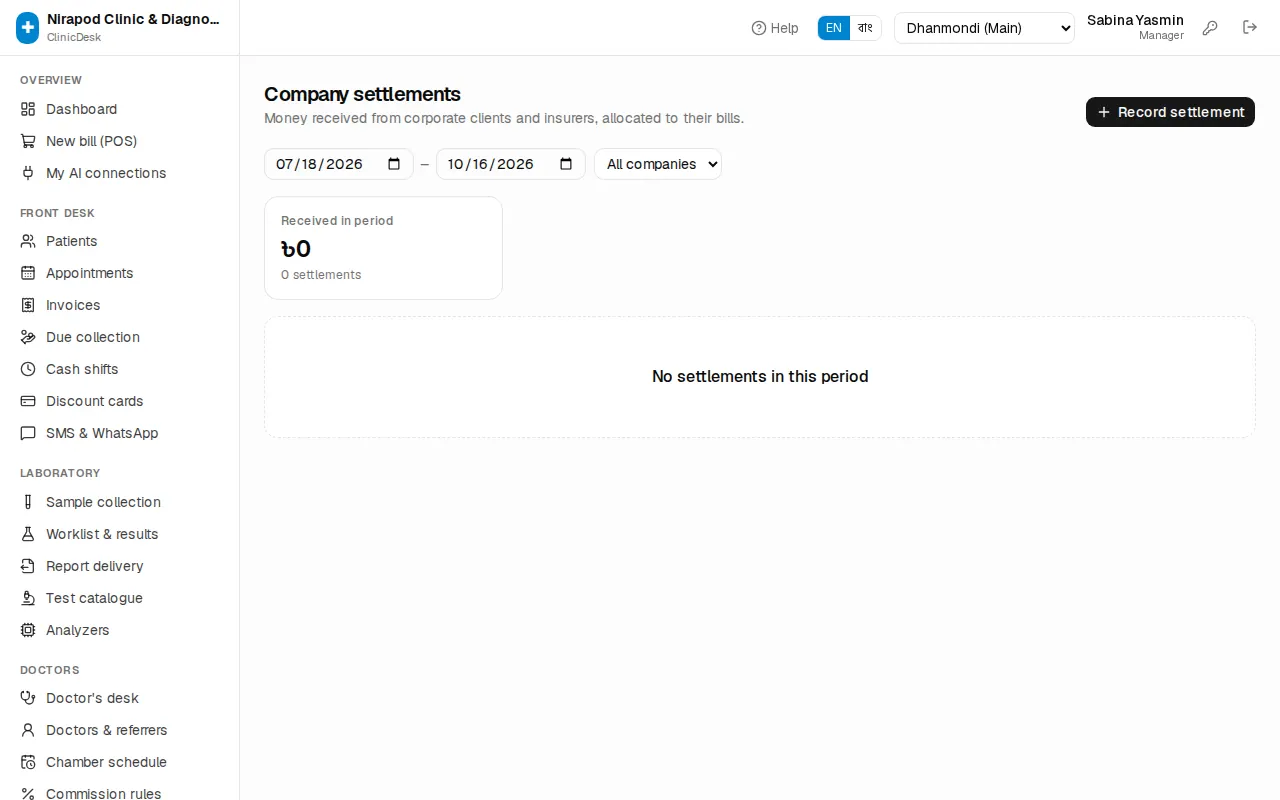
When the company pays by cheque or bank transfer:
- On the company page press Record settlement (or Corporate & insurance › Settlements › Record settlement and pick the company).
- Enter the Date received, Amount (৳) \*, Method, Cheque / transfer ref. and a Note.
- The company's open bills are listed below. Choose how to allocate:
- Oldest first — the money fills the oldest bills automatically.
- Bill by bill — type the amount in Settle now for each bill (full fills the whole outstanding).
- Check Allocated and Unallocated at the bottom. Unallocated money stays on account — you are asked to confirm.
- Press Save settlement ৳…. The number is CST-….
From the settlement page you can print a Receipt. If money is unallocated, Allocate remaining puts it on the oldest open bills. If something was wrong (e.g. a bounced cheque), press Reverse, give a Reason \* and press Reverse settlement — the bills become outstanding again, and it is recorded in the audit log.
Company statement
On the company page press Statement. Choose a date range — it shows the bills from all branches, the company share, money received in the period and what is outstanding. Print statement prints a copy to send to the company, or use the export buttons to download a file.
The Open bills tab on the company page shows how many Days old each unsettled bill is. For an ageing report see Reports.