Money, accounts & staff
Staff, attendance & payroll (HR)
Your own attendance and leave requests, the staff list, duty roster, daily attendance, leave approval, salary sheet, payslips and salary advances
Who it is for:OwnerManagerAccountantReceptionistDoctorLab technologistPathologistNurse
On this page
The Staff (HR) section of the sidebar covers everyone who works at the clinic — nurses, technologists, front desk, duty doctors, ward boys and cleaners. It runs from daily attendance to the month-end salary sheet and payslips.
Who sees what:
| Task | Who |
|---|---|
| My attendance & leave (own attendance, leave requests, payslips) | every staff member with a login |
| View the Employees list | Manager, Accountant, Owner |
| Add employees, Duty roster, Attendance, Leave decisions | Manager, Owner |
| Salary & payroll, Salary advances | Manager, Accountant, Owner |
My attendance & leave (for every staff member)
Open Staff (HR) › My attendance & leave in the sidebar.
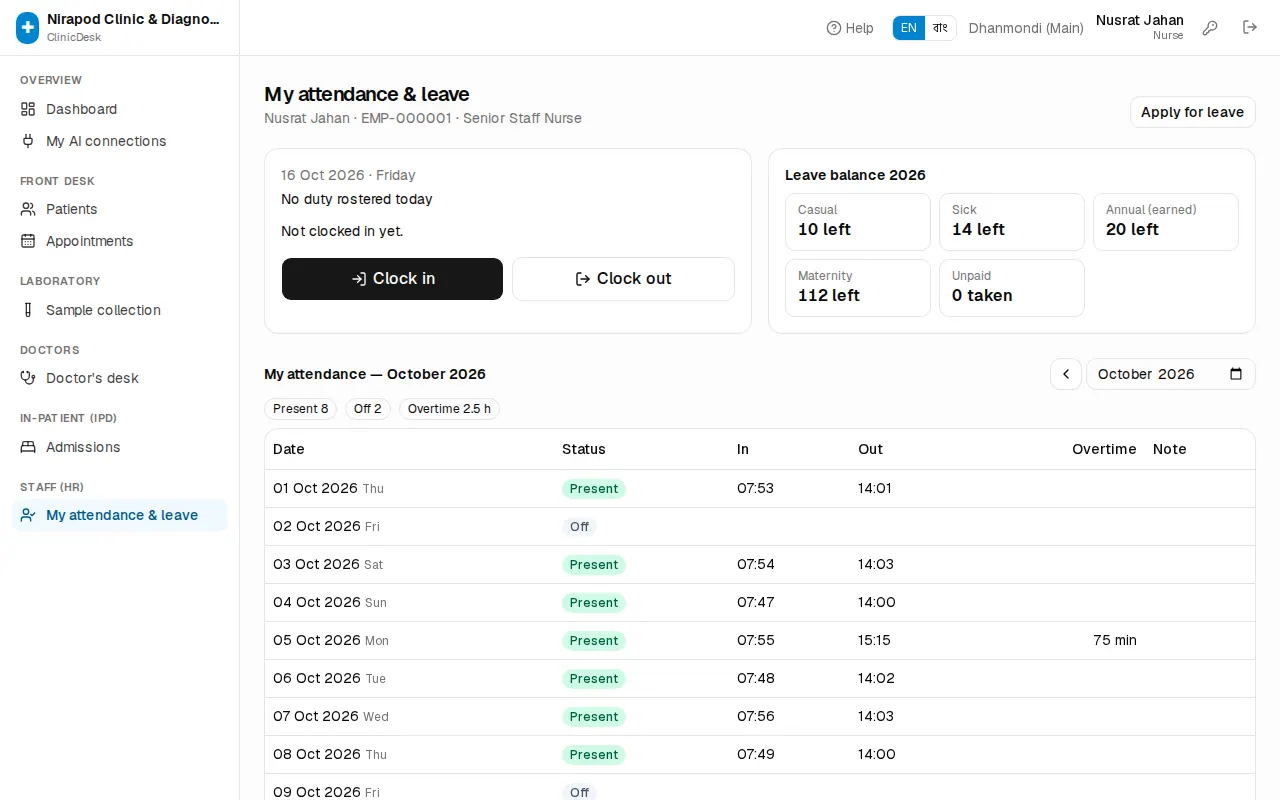
When you arrive for duty:
- The top box shows today's duty (e.g. Morning 08:00–14:00 · Ward 3). If you are not on the roster it says "No duty rostered today".
- Press the big Clock in button. "Clocked in" appears with the time. After the shift start plus the grace minutes you are marked Late.
- At the end of duty press Clock out. It works for a night shift that ends the next morning too.
Applying for leave:
- Press Apply for leave.
- Choose the Leave type — Casual, Sick, Annual (earned), Maternity or Unpaid.
- Set From and To. For half a day tick Half day (single date only).
- Write the Reason and press Send request.
Weekly off days and holidays inside the dates are not counted. The Leave balance box shows, per type, how many days you have taken, have left and have pending. Until a decision is made you can Withdraw a request under My leave requests.
Lower down are this month's attendance and My payslips — once a salary is paid, use Print payslip to get your own payslip.
Adding and editing employees
Staff (HR) › Employees lists everyone with department, branch, mobile, joining date and gross monthly salary. The top shows the Active staff count and the Monthly gross salary.
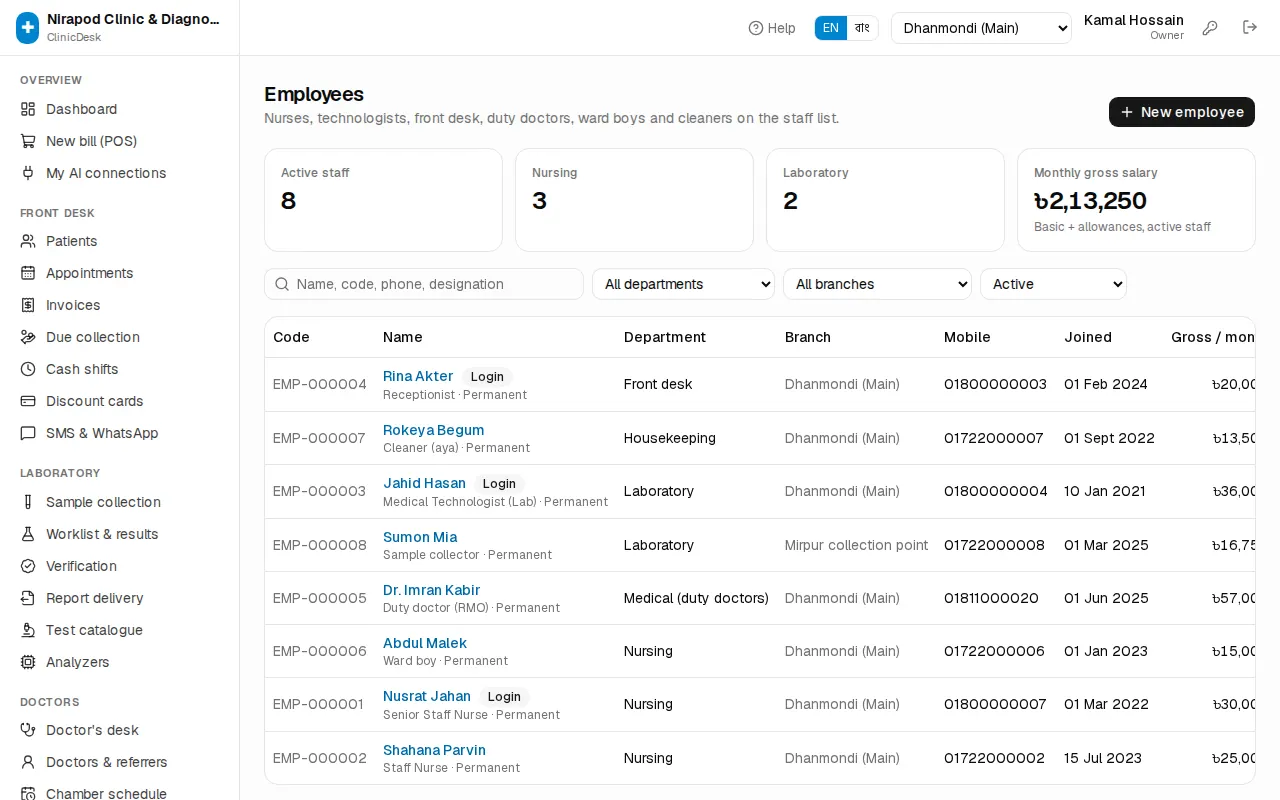
- Press New employee.
- Personal: Full name \*, mobile, sex, NID, blood group, emergency contact, address.
- Job: Designation (e.g. Senior Staff Nurse), Department (e.g. Nursing), Employment type, branch, Joining date.
- Linked login — if the person has a ClinicDesk login, pick it so they can clock in and apply for leave themselves. For a salaried duty doctor / RMO pick the Linked doctor profile.
- Monthly salary (৳): Basic, House rent, Medical, Conveyance, Other allowance, Overtime / hour. (Salary fields only show for users allowed to see payroll.)
- For salary by bank or bKash/Nagad fill Bank name & branch, Bank account no., bKash / Nagad no.
- Press Add employee.
When someone leaves, open their record, set Left on and untick Active. Inactive staff drop off the attendance sheet, roster and payroll, but their history stays. Choose Inactive / left in the list filter to see them.
Duty roster
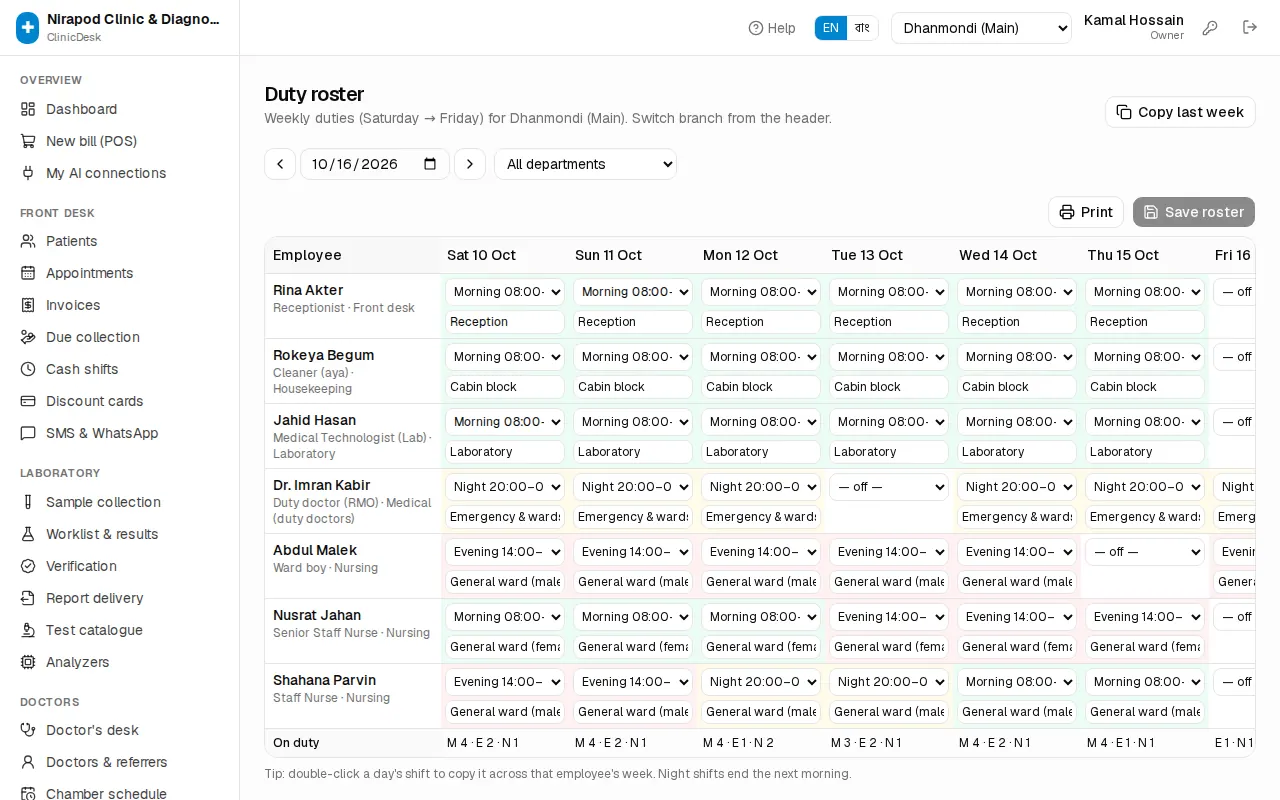
Staff (HR) › Duty roster holds the weekly duties, Saturday to Friday. Rosters are per branch — switch branch from the header.
First time: define the shifts. In the Duty shifts section press Add shift — a name (e.g. Morning), Starts, Ends and Grace (min). An end time earlier than the start (20:00 → 08:00) ends the next morning.
The week's roster:
- Pick the week in Week of. Filter by department if you like.
- In each employee's cell for each day choose a shift, or — off —. Type the ward in Ward / posting.
- Double-click a day's shift to copy it across that employee's whole week.
- Press Save roster. Until you do, the top shows how many changes are unsaved.
If every week is the same, press Copy last week — this week's roster is replaced with last week's. Press Print for the notice board.
Daily attendance
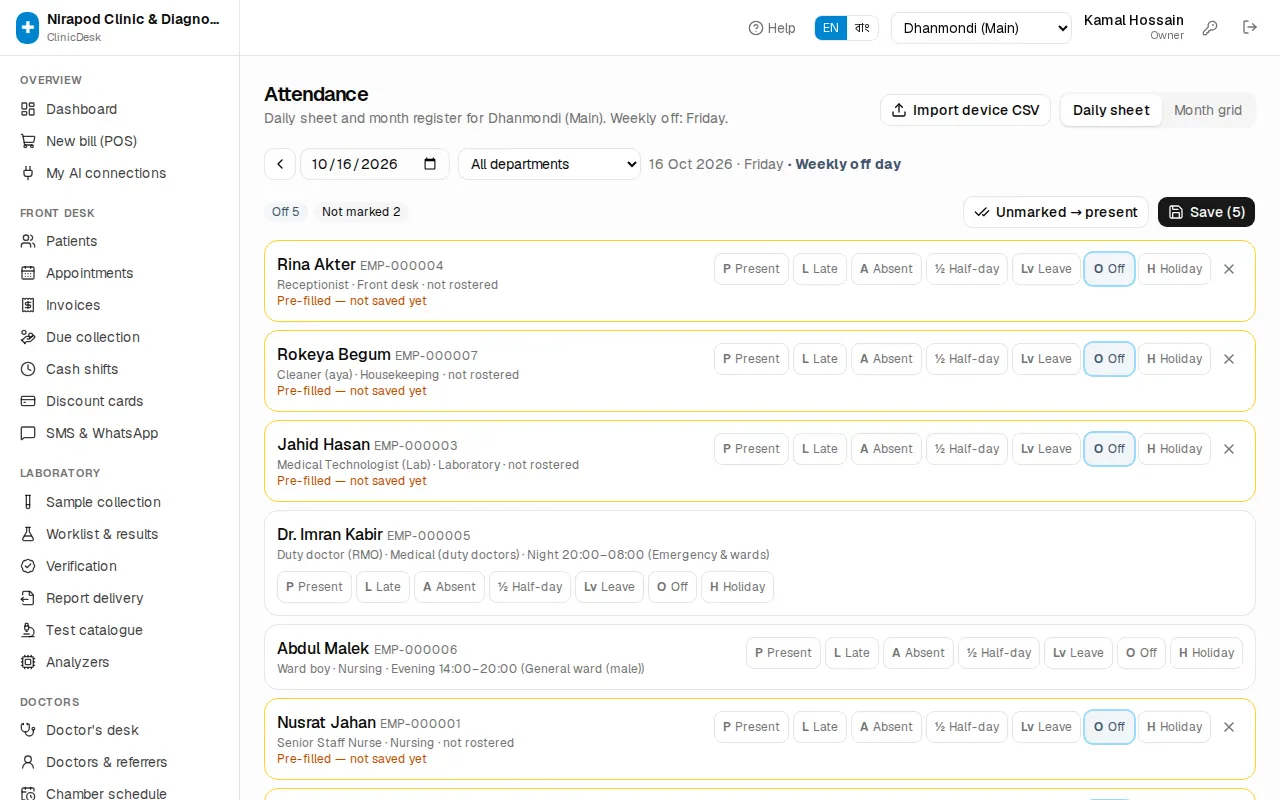
Staff (HR) › Attendance has two views: Daily sheet and Month grid.
Daily sheet:
- Pick the date (today is the default).
- Each employee has status buttons: P Present, L Late, A Absent, ½ Half-day, Lv Leave, O Off, H Holiday (narrow screens show only the letters). Enter in and out times and late and overtime are suggested from the rostered shift.
- Staff who pressed Clock in themselves, or came from the fingerprint device, are already filled in.
- If almost everyone is present press Unmarked → present, then fix the few others.
- Press Save ({n}) — the number is how many rows changed.
Employees on approved leave show the leave type on their row.
Month grid: every employee's letter code for every day of the month (P, L, A, ½, Lv, O, H). Click a day number to open that day's sheet. Print it as the attendance register.
Fingerprint device: press Import device CSV and choose the CSV exported from the device (columns: employee code, date, in, out). Codes may be EMP-000007 or just 7. At the end it shows how many rows were read, imported and skipped.
Approving leave
At the top of Staff (HR) › Leave is Waiting for a decision.
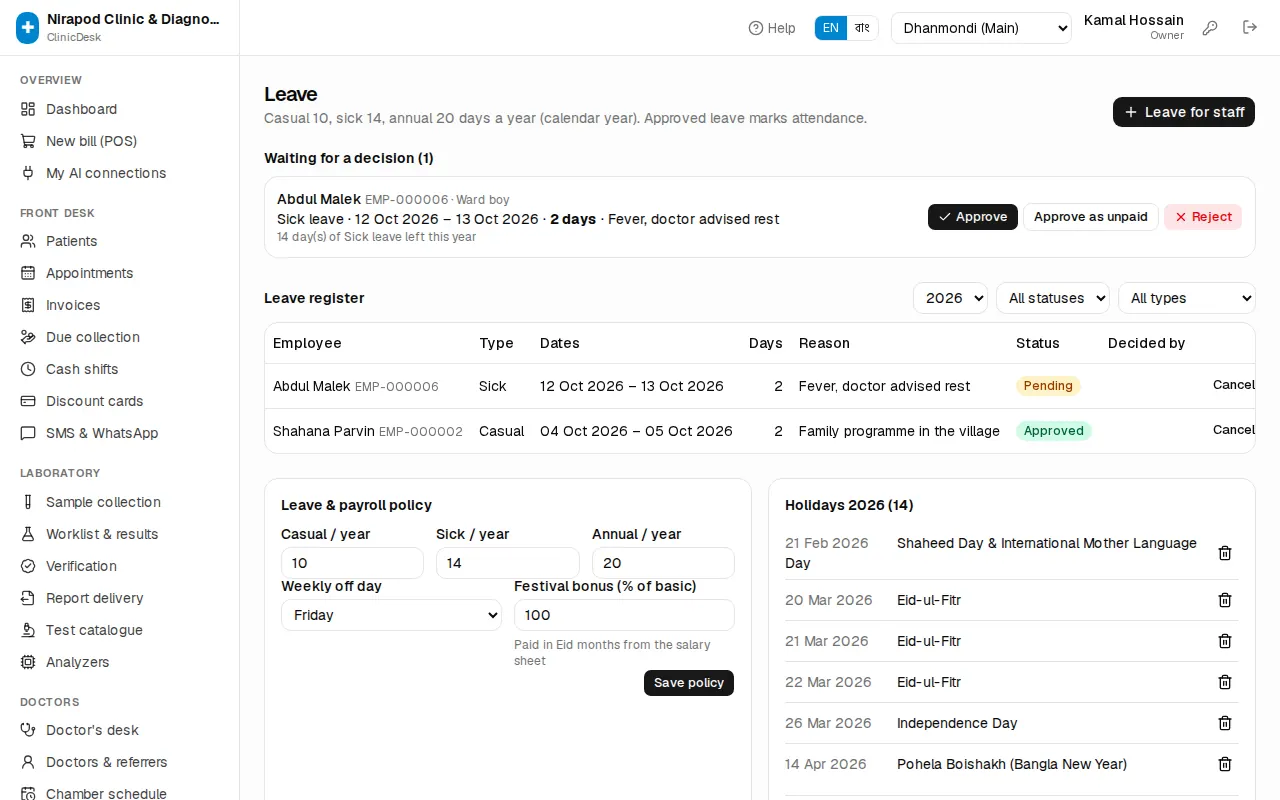
- Each request shows the type, dates, reason and how many days of that type are left.
- Press Approve. If the balance is not enough a warning shows; you can then Approve as unpaid (salary is deducted).
- Otherwise press Reject.
Approved leave marks attendance as "Leave" by itself. If someone cannot apply themselves, use Leave for staff to apply on their behalf.
Further down are the Leave register (every request, filter by status), Leave & payroll policy (Casual / year, Sick / year, Annual / year, Weekly off day, Festival bonus (% of basic)) and the year's holidays. Add the holidays (Eid and so on) at the start of the year and press Save policy after changing the policy.
Salary sheet and payslips
On Staff (HR) › Salary & payroll pick the month. The top line shows the month's working days (days − weekly offs − holidays).
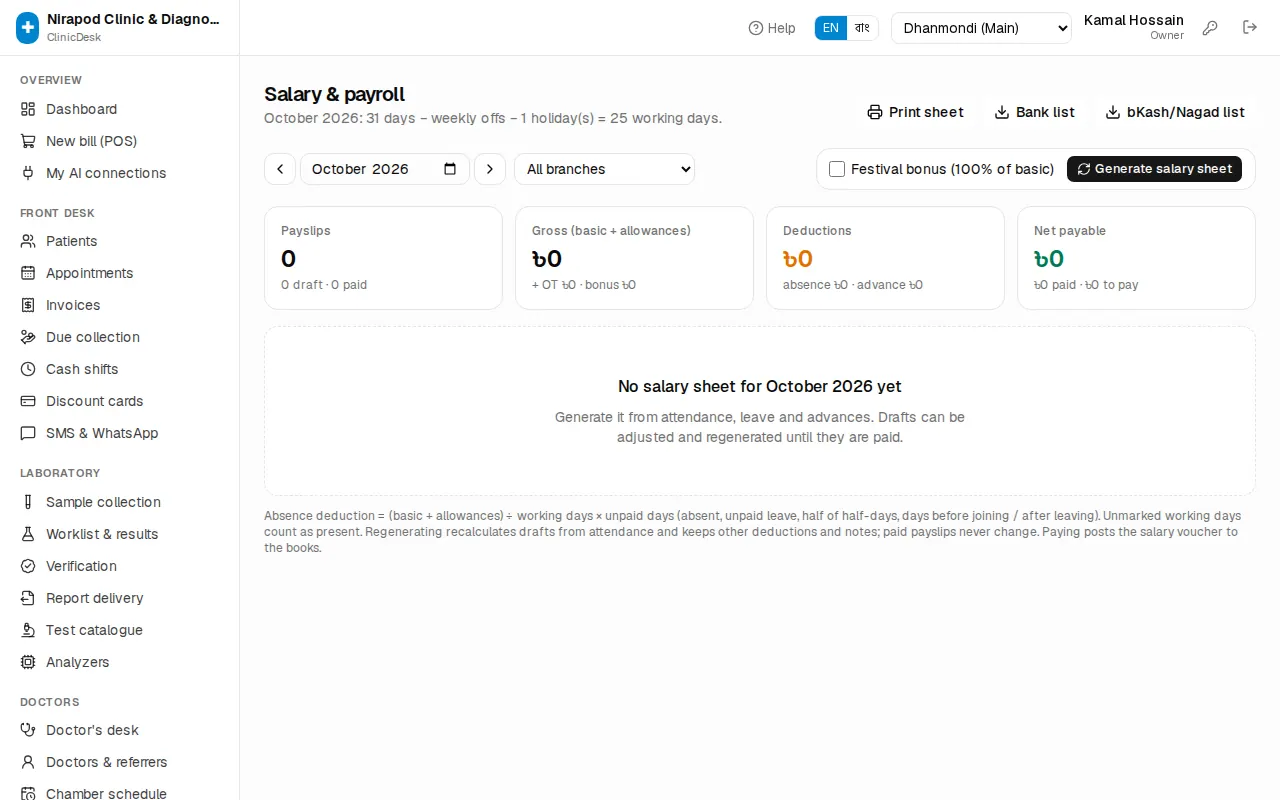
- First check that the month's attendance and leave are complete.
- In an Eid month tick Festival bonus.
- Press Generate salary sheet. Every active employee gets a Draft payslip: working/present/paid-leave/unpaid days, overtime, allowances, bonus, absence deduction, advance recovery and Net pay.
- To change someone's bonus or deductions press the pencil on their row — Bonus (৳), Other deduction (৳), Advance recovery (৳) and Note (printed on the payslip).
- If attendance is corrected later press Regenerate drafts — drafts are recalculated and your deductions and notes are kept.
- To pay: Select all drafts (or tick a few), choose the Payment method and press Pay selected. To pay one person, press the banknote icon on their row, choose Paid by and press Pay.
A paid payslip turns Paid and the salary voucher posts to the books. Use Print payslip on each row; Print sheet at the top prints the whole sheet. To send salaries by bank or mobile wallet, download the Bank list and bKash/Nagad list.
Absence deduction = (basic + allowances) ÷ working days × unpaid days (absent, unpaid leave, half of half-days, days before joining or after leaving).
Salary advances
Staff (HR) › Salary advances records money advanced against salary and recovers it month by month.
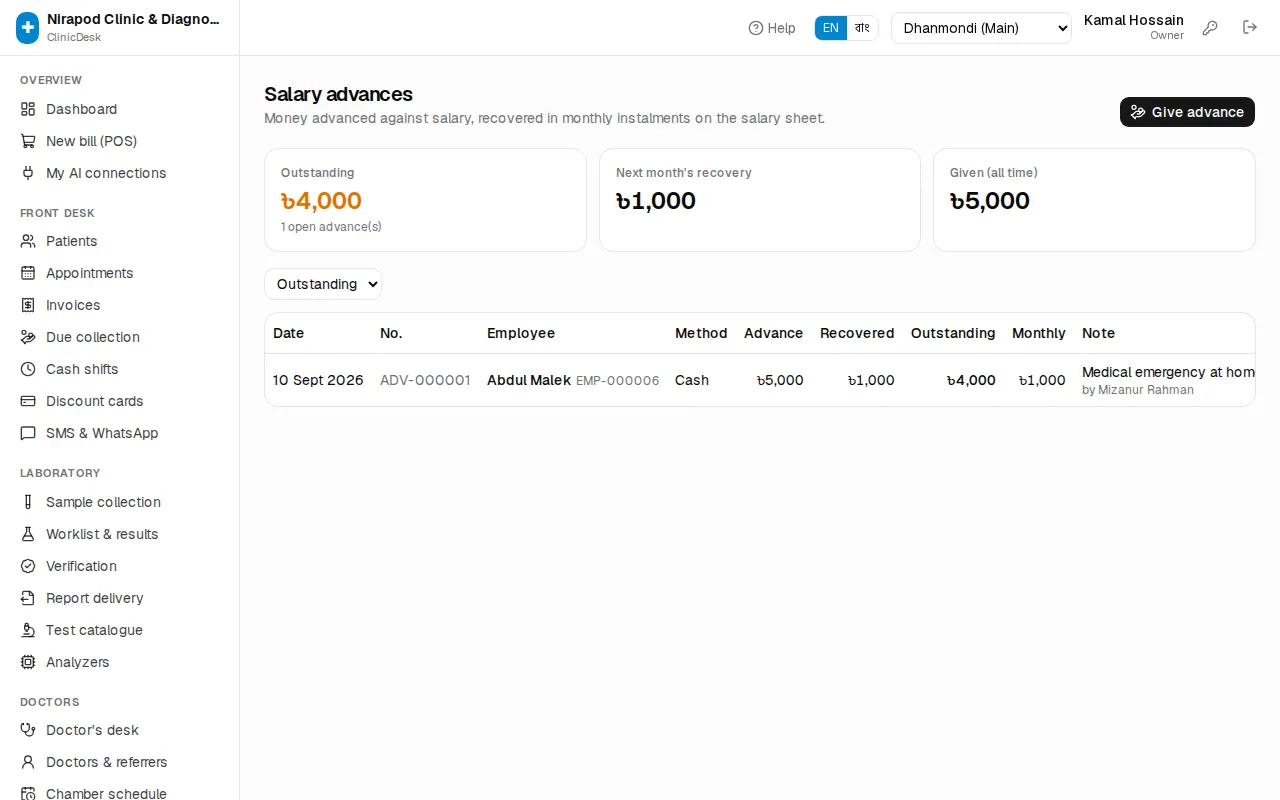
- Press Give advance.
- Choose the employee and enter the Amount (৳).
- Recover per month (৳) — how much to deduct from each salary. Leave it empty to recover everything from the next salary.
- Set Paid by, Date and a Note (e.g. Child's admission fee) and save.
The cards show Outstanding, Next month's recovery and Given (all time). Generating the salary sheet deducts the instalment automatically. Change an instalment with the pencil on the row; Full history shows every advance.
Attendance, leave, payroll cost, overtime and outstanding advance reports are under Reports › Staff & HR — see Reports. How the salary vouchers reach the books is in Expenses, doctor commission & accounting.