Reports
Reports & dashboard
What the dashboard numbers mean, which report answers which question, date and branch filters, CSV export and printing
Who it is for:OwnerManagerAccountant
On this page
ClinicDesk keeps no separate registers — every report is built from the bills, lab work, OPD, admissions, expenses and salaries you already record. This chapter covers reading the dashboard, finding a report, filtering it, and printing or exporting it.
The Owner, Manager and Accountant can see reports. Someone tied to one branch sees only their branch; a few clinic-wide reports (such as patient registrations and commission rules) are not in their list.
Dashboard numbers
Open Overview › Dashboard. Under the "Welcome" heading are the branch name and today's date. Owners, managers and accountants can pick their branch or All branches in the drop-down on the right — the numbers follow. Money figures are only shown to users who may see bills or reports.
- Billed today — the value of today's bills, the number of bills and how many were cancelled.
- Collected today — money received today, split by payment method (dues of older bills collected today are included).
- Due on today's bills — what is still unpaid on today's bills.
- Refunds today — money returned to patients today.
- All outstanding dues — the total due on all bills of every day.
- Laboratory now — Waiting for sample, In process, Awaiting verification, Ready, not delivered, Overdue (past due time) and Critical results today.
- New patients today, OPD appointments today (seen and waiting), Beds occupied and Beds free.
- The Last 14 days chart — billed, received and refunds per day.
- Top tests this month and OPD today by consultant.
Opening a report
Go to Finance › Reports in the sidebar. Reports are grouped: Billing & cash, Laboratory, Doctors, Patients, OPD & IPD, Corporate & cards, Finance, Staff & HR and Audit. Each card shows the report name and a one-line description.
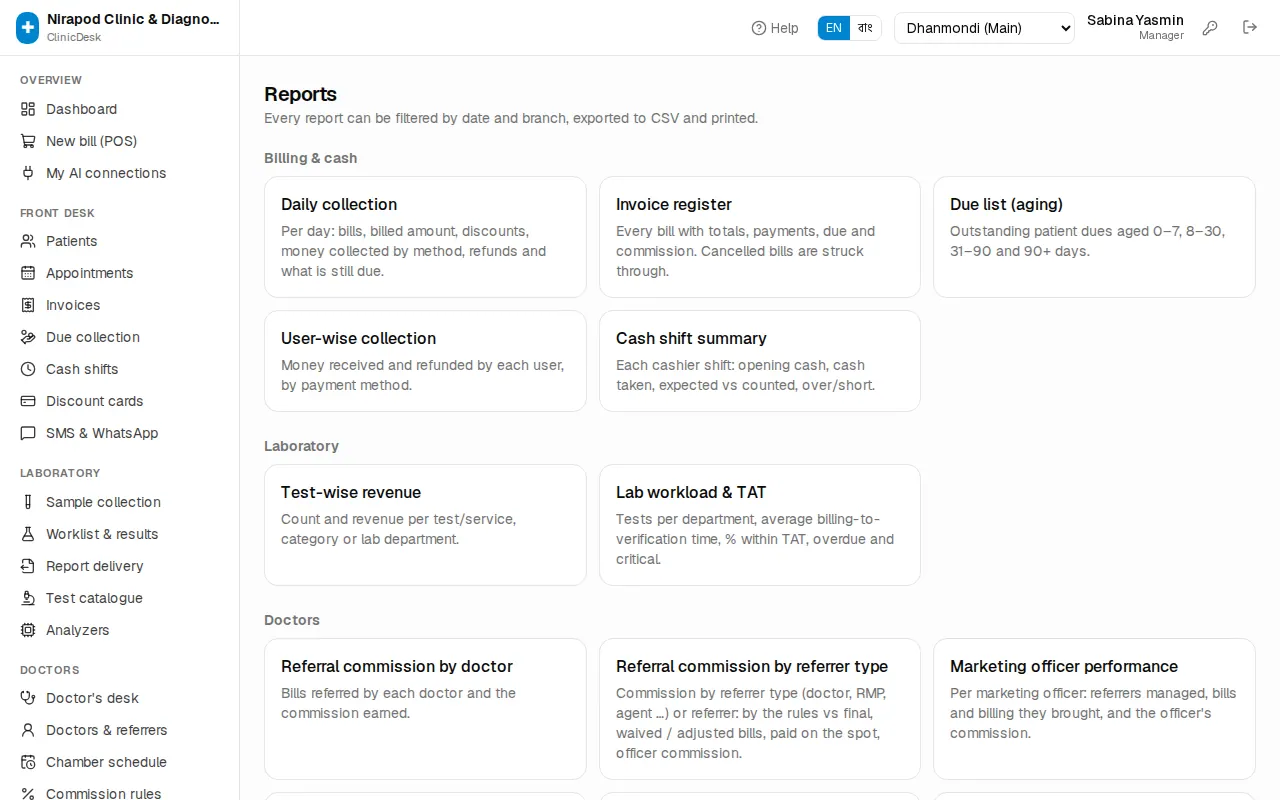
The Doctors group also has a Doctor payouts card and the Audit group an Audit log card (if you have access) — they open those pages directly.
Click a card to open the report. The Reports link at the top takes you back to the list.
Filters: date, branch and view
Under the report title is a row of filters:
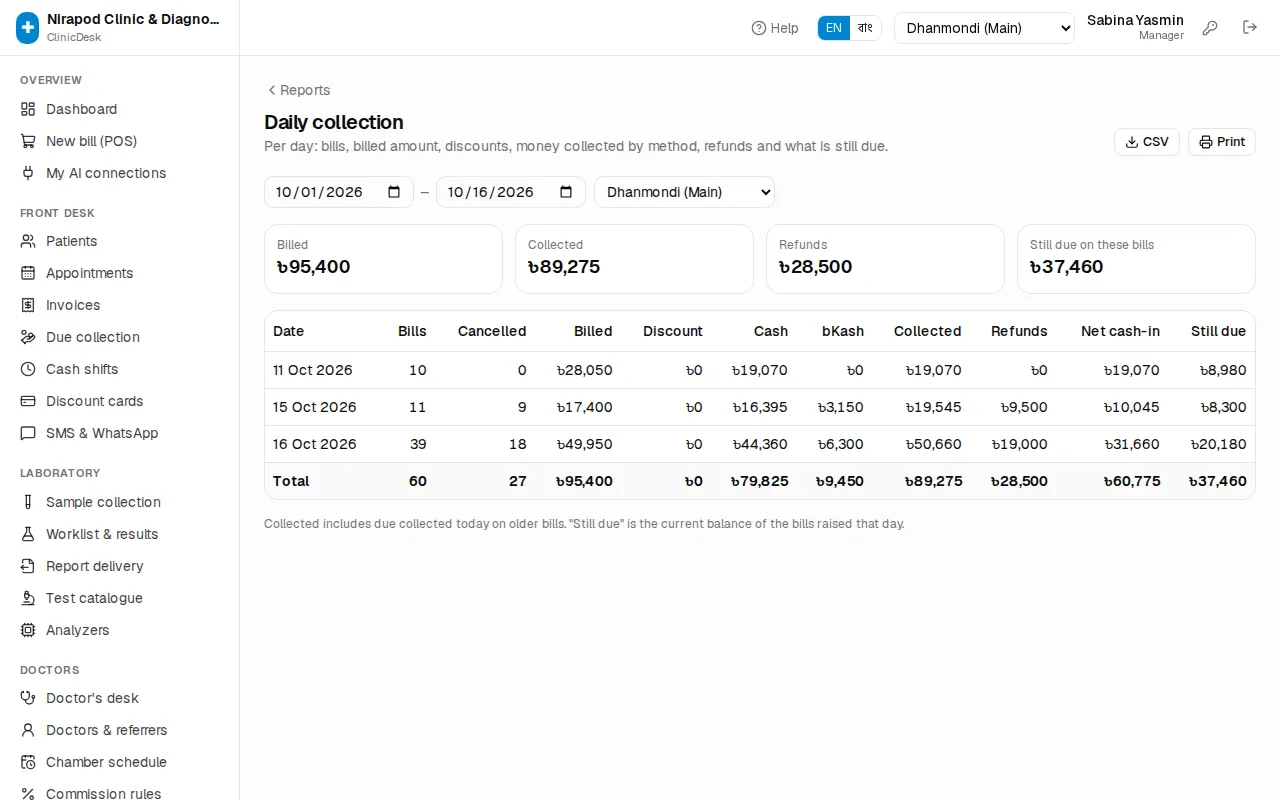
- Dates — two date boxes (from – to). The report reloads as soon as you change a date; there is no separate button. Reports that are "as of today" (such as Due list (aging)) have no date boxes.
- Branch — with more than one branch, pick one branch or all.
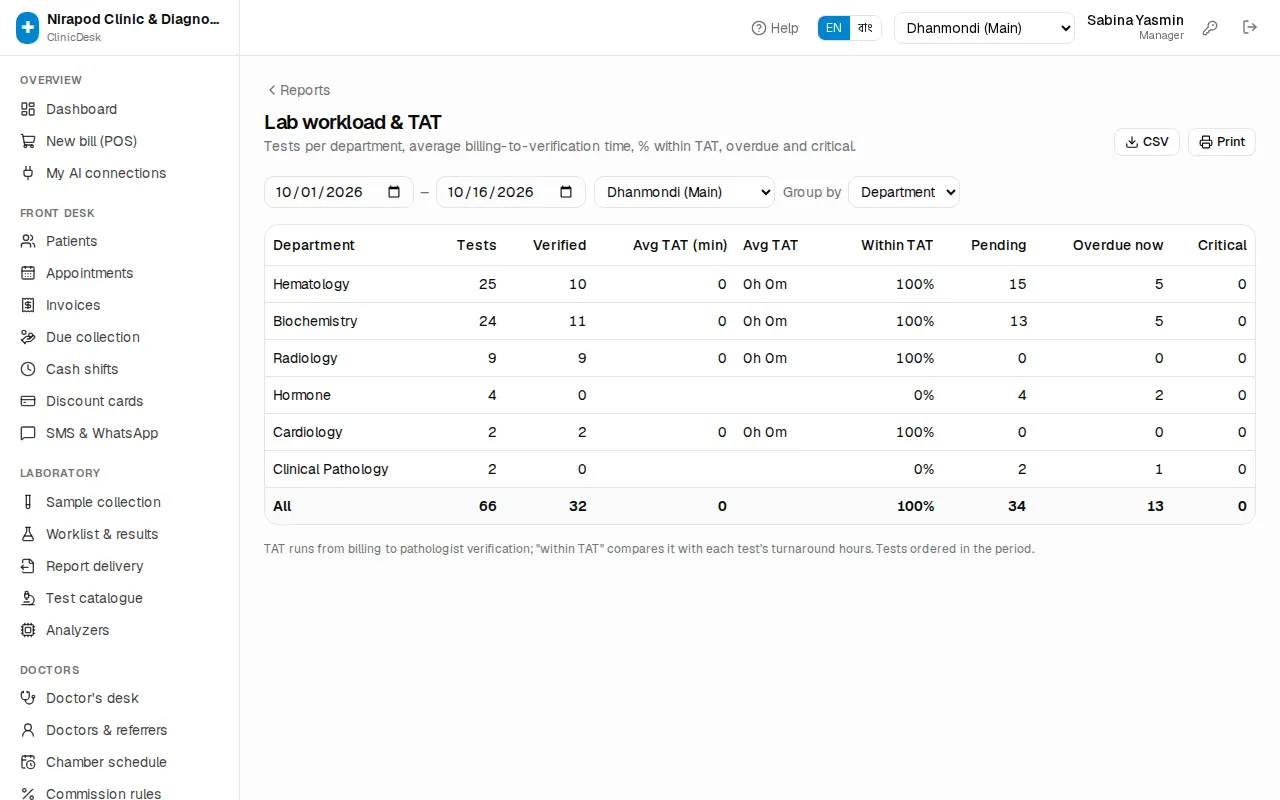
- View — some reports have extra choices, e.g. Group by (test / category / department), Per (day / month), Show (summary or Every entry), Bills (all / active / with due / cancelled).
Summary tiles come first, then the table with a totals row. If nothing matches, "Nothing to show" appears — change the dates or filters.
Printing and CSV
Every report has two buttons at the top right:
- CSV — downloads the table as a CSV file. Open it in Excel or Google Sheets for your own calculations.
- Print — opens the browser's print dialog. The printout carries the clinic name, report name, branch, dates and filters, plus who printed it and when. For a PDF choose "Save as PDF" in the print window.
The accounting pages (trial balance, income statement, balance sheet, ledger) are not in the report list, but they have the same CSV and Print buttons — see Expenses, doctor commission & accounting.
Which report answers which question
| Question | Report |
|---|---|
| How much was billed and received today / this month, and by which method? | Daily collection |
| Which bills have dues, which were cancelled? | Invoice register |
| Who owes money, and for how long? | Due list (aging) |
| How much did each receptionist take in? | User-wise collection |
| Which shift was short or over? | Cash shift summary |
| Which tests earn the most? | Test-wise revenue |
| Are lab reports on time? | Lab workload & TAT |
| Which doctor referred how many patients, and what commission? | Referral commission by doctor, Referral commission by referrer type |
| What business did the marketing officers bring? | Marketing officer performance |
| What commission rule applies to whom? | Commission rules |
| How are consultation fees split with doctors? | Consultant share by doctor |
| What do we still owe each doctor? | Doctor payable balances |
| How many new patients per day? | Patient registrations |
| How many patients did each consultant see? | OPD appointments by doctor |
| How full are the beds? | IPD admissions & bed occupancy |
| What does each company owe us? | Company outstanding (aging), Company billing by period, Company settlements |
| How many discount cards were sold, how much discount given? | Discount card sales, Card discount given |
| Where did the money go? | Expenses by category |
| What is the month's profit on a cash basis? | Income summary |
| Who was present or absent, and how often? | Monthly attendance summary |
| Who was on leave, and when? | Leave register |
| What do salaries cost per month? | Salary sheet & payroll cost, Overtime |
| Who still owes a salary advance? | Salary advances outstanding |
| Who cancelled a bill or gave a refund? | Cancelled bills & refunds |
| Who gives how much discount? | Discounts given by user |
A daily and monthly routine
Every evening (manager):
- Daily collection for today. Match the cash, bKash and card totals.
- Cash shift summary — follow up at once on any shift that is short or over.
- Cancelled bills & refunds — check the reason and the user for every cancellation.
Every week:
- Lab workload & TAT — which department is running late.
- Due list (aging) — phone patients whose dues are older than 30 days.
At month end (owner and accountant):
- Income summary (Per: Month) — collections − refunds − expenses − doctor payouts = net cash income.
- Doctor payable balances — what is owed to whom; then pay as described in Expenses, doctor commission & accounting.
- Company outstanding (aging) — ask corporate clients for payment.
- Salary sheet & payroll cost — salary cost per department.
- Discounts given by user — is anyone giving too much discount?
To see who did what and when (cancelled bills, price changes, new users), the owner can open Admin › Audit log — see Owner setup.