Owner & setup
Payments, licence & AI
Online bill payment gateways (your own account or JonakiSoft central), licence status and sync, features not in your plan, integrations and AI assistants
Who it is for:OwnerManager
This chapter is mainly for the owner: how patients pay their bills online, what your JonakiSoft licence includes and what happens when it ends, and how to connect AI apps such as Claude or ChatGPT to the clinic's data. Only the owner can change the payment and AI settings; every staff member can use My AI connections.
Online payments
Patients can open the patient portal with their bill number and report PIN and pay the due with SSLCommerz, bKash or Nagad. When the money arrives, the money receipt is added to the bill automatically. The patient's side is shown step by step in Patient portal.
Press Online payments at the top of Settings.
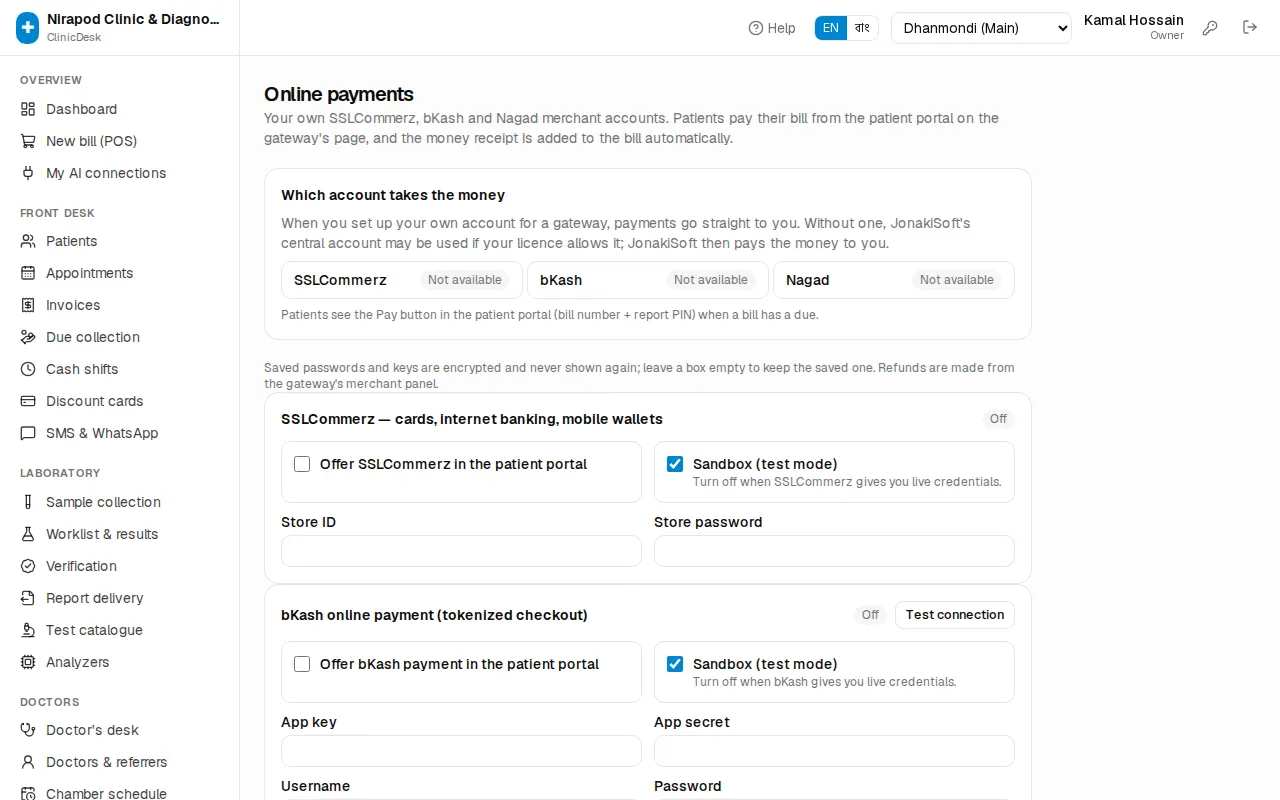
Which account takes the money
The Which account takes the money box shows a label next to each gateway:
- Your account — you have set up your own merchant account; the money goes straight to you.
- JonakiSoft central — you have no account of your own, but your licence allows the central one. The money goes into JonakiSoft's account and JonakiSoft then pays it to you.
- Not available — patients cannot pay with this gateway.
Setting up your own gateway
When SSLCommerz, bKash or Nagad opens a merchant account for you, they give you some details. Enter them here:
- Tick Offer … in the patient portal for the gateway you want, for example Offer bKash payment in the patient portal.
- Fill in the details:
- SSLCommerz: Store ID and Store password.
- bKash: App key, App secret, Username and Password.
- Nagad: Merchant ID, Merchant number, Merchant private key and Nagad public key.
- Keep Sandbox (test mode) on while you test; turn it off when the gateway gives you live credentials.
- Press Save payment settings.
- For bKash and Nagad, Test connection checks that the gateway answers.
The label next to each gateway tells you its state: Off, Credentials missing (details incomplete), On · sandbox or Live.
Money collected by JonakiSoft
At the bottom, Payments collected by JonakiSoft lists every payment taken with the central account: Date, Gateway, Transaction and Amount. When JonakiSoft sends a settlement summary, it shows what was collected, the gateway fees, what has been settled to you and what is still payable. Pending in the Reported column means the payment has not been reported to JonakiSoft yet; this happens by itself later.
Licence and features
The Licence & features box on Admin › Settings shows what your JonakiSoft licence includes:
- Licence status, Plan, Valid until (with the grace date, if any) and Last synced.
- Each module on its own line: a green tick means it is on; grey lines say "(not in plan)".
The licence is checked once a day and updated at once when JonakiSoft changes it. To see a renewal straight away, press Sync licence now; you see "Licence synced". If a sync fails, "Last sync failed: …" appears and ClinicDesk keeps working with the stored licence.
When the licence ends
- Grace days: for a few days after the licence ends everything still works. A yellow banner at the top of every page says "Your licence has expired. ClinicDesk keeps working until (date); please renew." Details opens the licence page.
- Locked: when the grace days are over, or the licence is suspended or revoked, every page goes to the licence page. It says, for example, "Your licence has expired" or "Your licence is suspended", with the support phone, WhatsApp and email.
Nothing is lost while locked: "All your patients, bills, lab reports and accounts are saved. They open again as soon as the licence is active. The patient portal and online booking are paused until then." After renewing, press Sync licence now and everything opens again.
Features not in your plan
When a module (for example In-patient, HR or corporate billing) is not in your licence, its menu disappears from the sidebar. Anyone who opens it by a direct link sees this page:
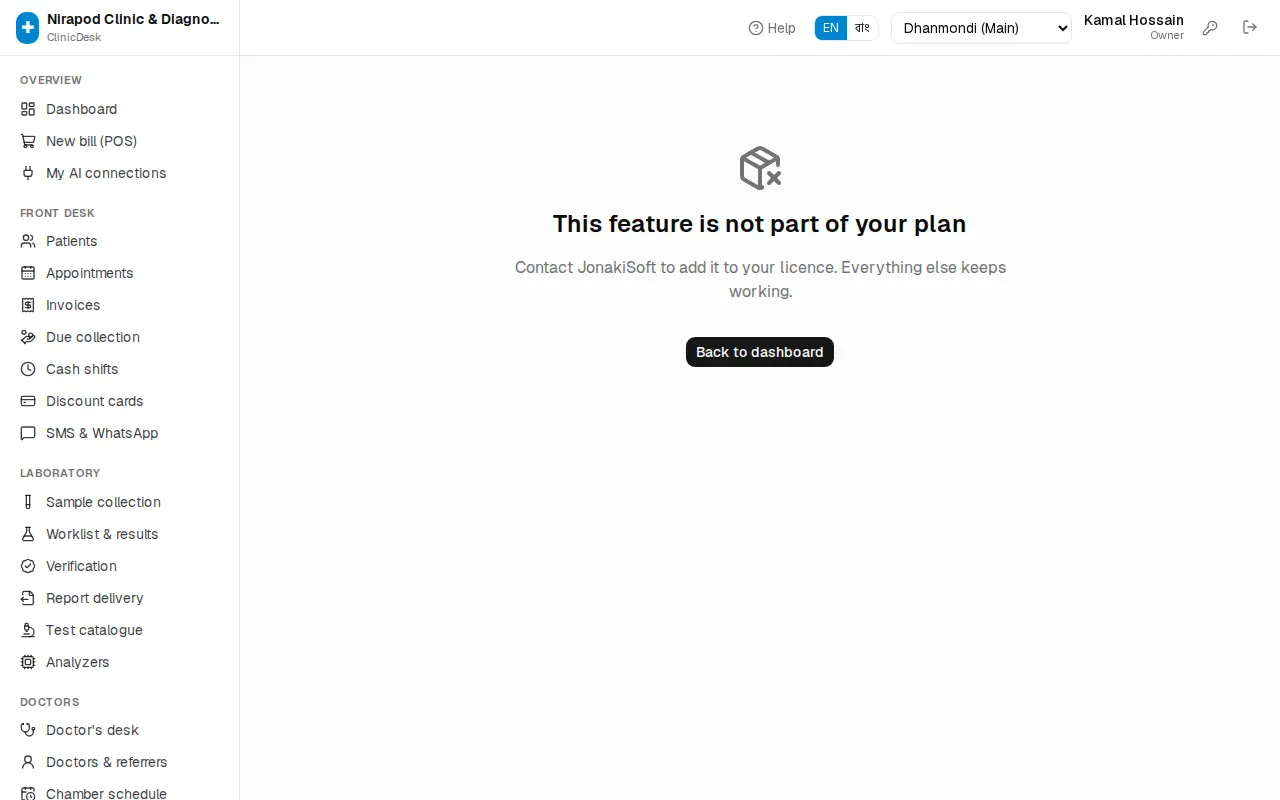
The owner sees "Contact JonakiSoft to add it to your licence. Everything else keeps working."; other staff see "Ask the clinic owner, or contact JonakiSoft to add it to the licence." Back to dashboard takes you back to work.
Integrations
Admin › Integrations connects outside systems to the clinic. Only the owner can open it.
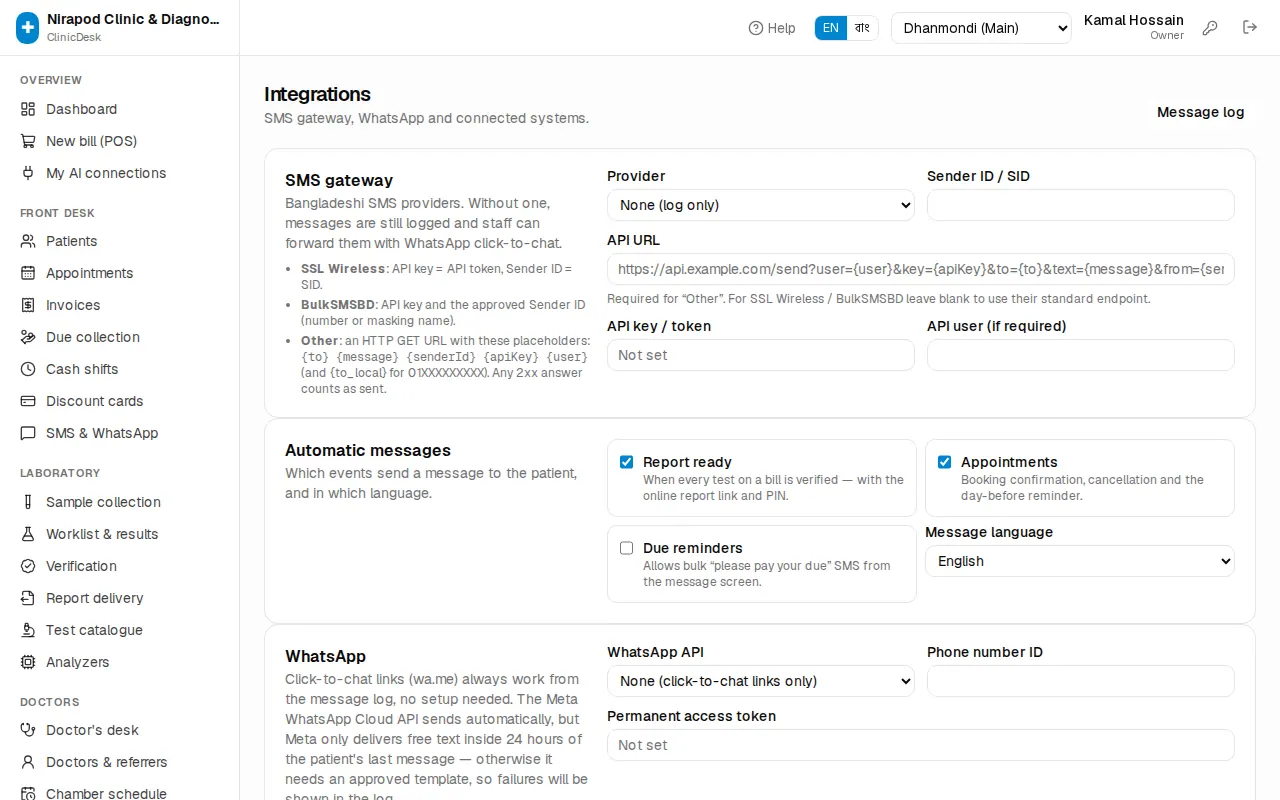
- SMS gateway, Automatic messages and WhatsApp — which provider, which events send the patient a message and in which language. The details are in SMS & WhatsApp.
- Send a test — after saving, send a test SMS to check the gateway.
- Pharmacy link (PharmaDesk) — doctors' prescriptions go straight to your pharmacy, and medicines sold to admitted patients land on their running bill. How to link is in Pharmacy link.
Connecting lab analyzers is covered in Laboratory.
AI assistants (MCP)
ClinicDesk can be connected to Claude, ChatGPT and other AI apps. You can then ask the AI questions in Bangla or English and it answers from the clinic's data — "How many patients did we see today?" or "Which tests were most common this month?".
Open Admin › AI assistants (MCP).
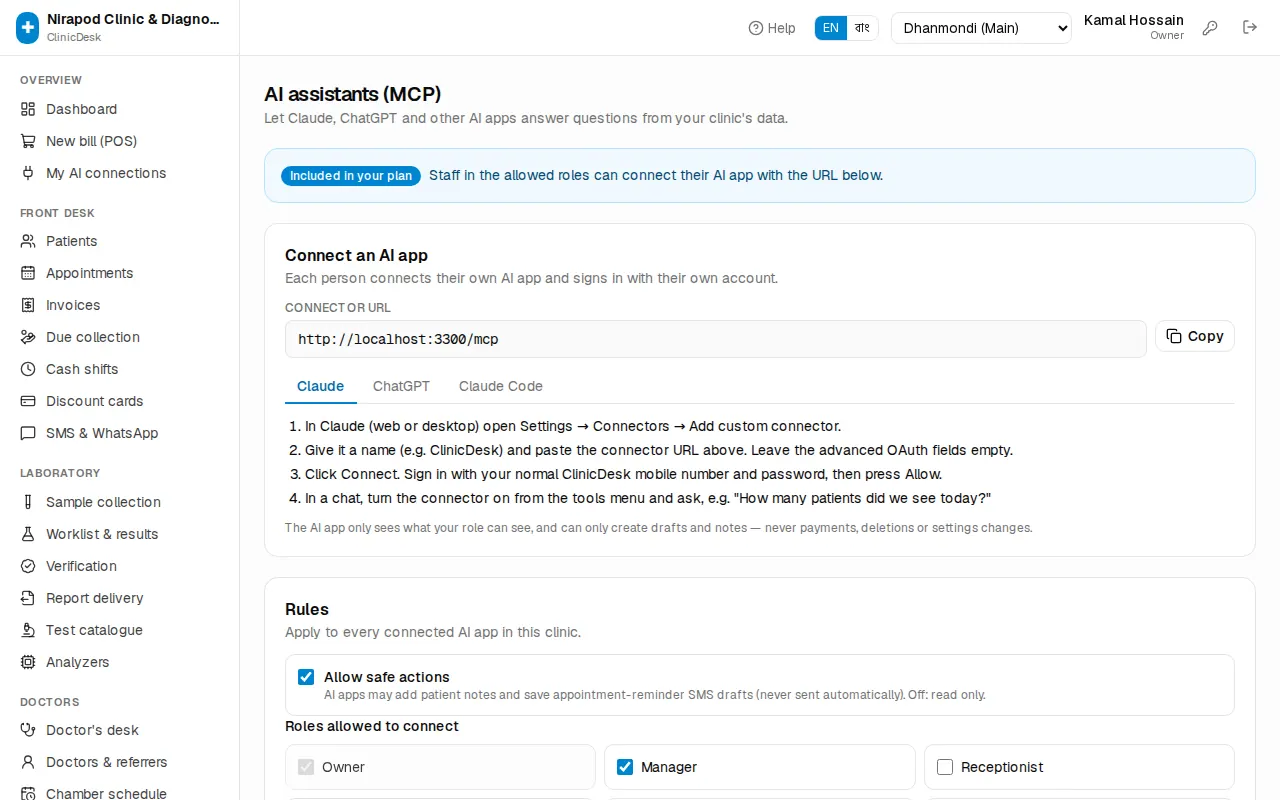
The coloured box at the top says whether the connector is Included in your plan or Not in your plan. It is sold separately; ask JonakiSoft if it is not in your plan.
Setting the rules
- Allow safe actions — when on, AI apps may add patient notes and save appointment-reminder SMS drafts (never sent automatically). When off, they can only read.
- Roles allowed to connect — tick the roles whose staff may connect an AI app. The owner always can.
- Press Save.
Each person still only sees what their role can see in ClinicDesk. Lab result values are never shared with AI apps, and AI apps can never take payments, delete anything or change settings.
Connected apps lists every AI app connected in the clinic; Revoke cuts one off. Recent activity shows the last 50 requests from AI apps — who, which tool and the result.
Connecting your own AI app
Each person connects their own AI app and signs in with their own account. Open Overview › My AI connections in the sidebar.
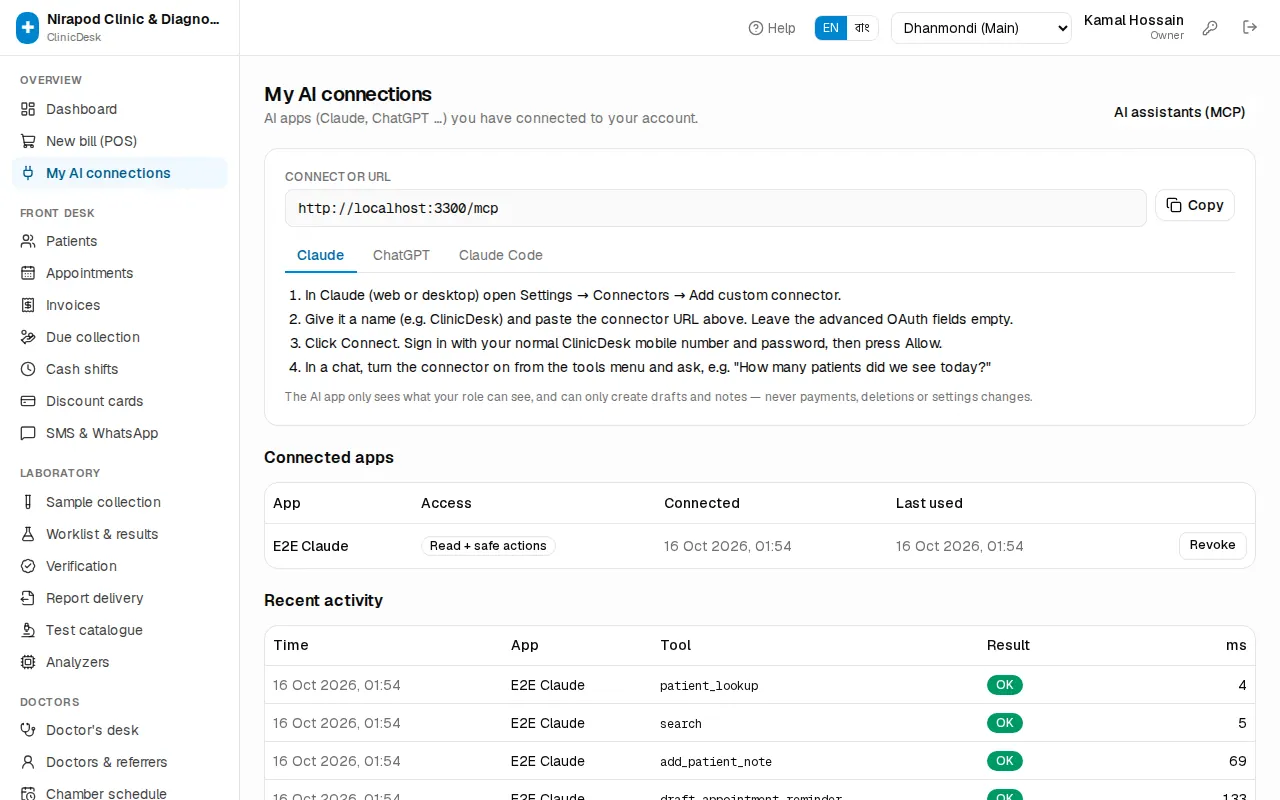
- Press Copy next to the Connector URL.
- Choose the tab for your app — Claude, ChatGPT or Claude Code. The steps are written right there; in Claude, for example, open Settings → Connectors → Add custom connector and paste the URL.
- Press Connect. ClinicDesk's sign-in page opens: sign in with your normal mobile number and password, then press Allow.
- Turn the connector on in a chat and ask your question.
Your connected apps are listed under Connected apps on the same page. If you lose your phone or no longer need an app, press Revoke; the app will have to sign in again.