Doctors, lab & IPD
Doctors & prescriptions
Calling today's patients from the Doctor's desk, vitals, writing and printing prescriptions, sending them to the pharmacy; adding doctors and referrers, the chamber schedule and doctor leave.
Who it is for:DoctorManagerOwnerReceptionist
On this page
This chapter has two parts. The first is for doctors: calling, seeing and prescribing from the Doctor's desk in the chamber. The second is for reception and managers: the list of doctors and referrers, their fees, chamber days and hours, and leave.
The Doctor's desk
Open Doctors › Doctor's desk in the sidebar. A doctor's login lands here straight after sign-in, and the title reads My patients today. When a nurse or manager opens the page, they first pick the doctor in Choose consultant at the top.
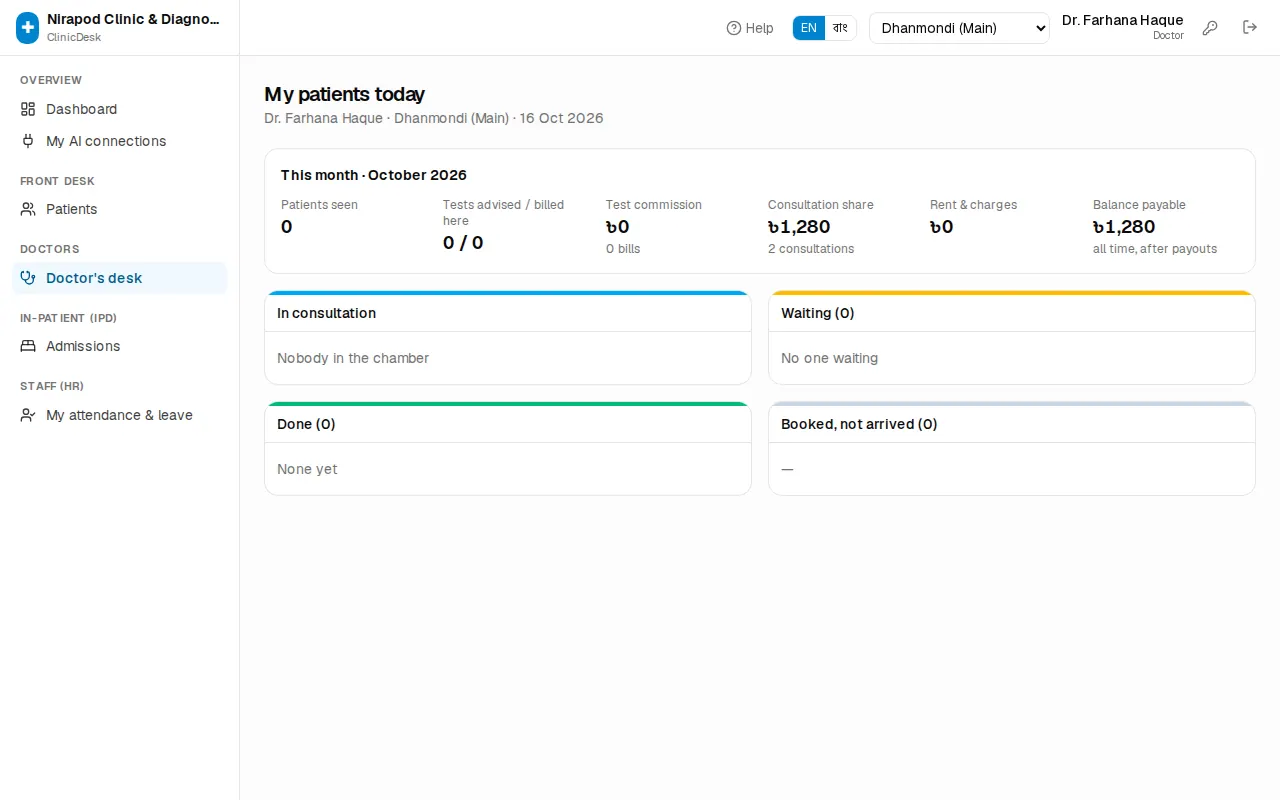
The page has four columns. It refreshes itself every 20 seconds, so a patient checked in at reception shows up here within moments.
| Column | What it holds |
|---|---|
| In consultation | The patient in the chamber now. Open opens their prescription page. |
| Waiting (n) | Checked in at reception and waiting, in serial order. |
| Done (n) | Seen today. The Rx button reprints the prescription. |
| Booked, not arrived (n) | Has an appointment but has not checked in yet. |
Each row shows the serial number, the patient's name, ID (MRN), age and sex, new or follow-up, and the expected time.
This month at a glance
When doctors sign in themselves, a small This month panel shows at the top: Patients seen, Tests advised / billed here, Test commission, Consultation share, Rent & charges and Balance payable. It is read-only; payments to doctors are made by accounts (see Accounting & commission).
Calling the next patient
- When someone is waiting, a blue Call next (#serial) button appears at the top. Press it.
- The next patient by serial moves to In consultation and their prescription page opens at once.
- To call someone out of turn, press Call on their row in Waiting.
Writing a prescription
The top of the patient's page shows name, serial, age, sex, blood group and phone. If the patient has allergies recorded, a red Allergies: box appears — always read it before prescribing. If the patient is currently admitted, a purple admission-number link shows too.
Two lists on the right help you decide:
- Recent lab results — the patient's verified reports. Values outside the normal range show in red (high ↑) or blue (low ↓). Click a test name to open the full report.
- Past visits — earlier prescriptions, blood pressure, weight and diagnosis. Notes written while admitted show as Ward note.
Step by step:
- Under Vitals, enter BP (systolic/diastolic), Pulse, Temp, SpO₂, Weight and Height. BMI is worked out from weight and height.
- Fill Chief complaints, History, On examination and Diagnosis.
- In Investigations advised, type a test name (for example CBC, RBS, X-ray) and pick it from the list. Each test is added as a blue chip; press the chip's × to remove a wrong one.
- Write advice in Advice, such as plenty of water or rest.
- For a return visit, pick a Follow-up date, or press 7 days, 14 days or 1 month. Clear removes the date.
- Under ℞ Medicines, type the medicine in the first row (for example Tab. Napa 500 mg). Medicines you have prescribed before are suggested as you type.
- In the next boxes enter the dose (such as
1+0+1), duration (such as 7 days) and instruction (such as after meal). Under the row you are working on, small buttons offer the common doses, durations and instructions — one press fills the box. - Press Add medicine for more lines. The bin icon removes a line.
- Press Save to keep your work part-way. When you have finished with the patient, press Save & finish — "Consultation finished" shows, you return to the desk, and the patient moves to Done.
Whenever something has changed, the bottom bar shows Unsaved changes in orange. Do not leave the page without saving.
Printing the prescription
- After the first save, the bottom bar shows Print Rx. It opens the printable prescription in a new tab.
- The prescription carries the clinic name, the doctor's name, degrees and BMDC number, the patient's details, vitals, investigations, diagnosis, medicines, advice and follow-up date.
- Choose the printer in the browser's print window and print.
To reprint later, press Rx in the Done column of the desk.
Billing the advised tests
When the doctor advises tests, the bottom bar shows Bill advised tests (n). It opens a new bill (POS) with the patient, the tests and the referring doctor already filled in, so the referral commission goes to the right doctor. The rest — discount, taking the money — works as in Billing & payments.
Sending to the pharmacy
If your clinic is linked to a PharmaDesk pharmacy (set-up: Pharmacy link), a Send to pharmacy button appears in the bottom bar once the prescription is saved.
- Save the prescription.
- Press Send to pharmacy. The medicine list goes to the pharmacy counter, ready to sell.
- When it has been sent, the button reads Sent to pharmacy ✓. Pressing it again asks "Already sent. Send again?"
Without a pharmacy link the button does not appear.
Doctors & referrers
Open Doctors › Doctors & referrers. Two kinds of people live here:
- Consultants — doctors who sit at this clinic, take appointments and earn consultation fees.
- Referrers — people who send patients and earn commission on tests: outside doctors, village doctors (RMP), agents, hospitals / clinics, ambulance drivers, and the clinic's own marketing officers.
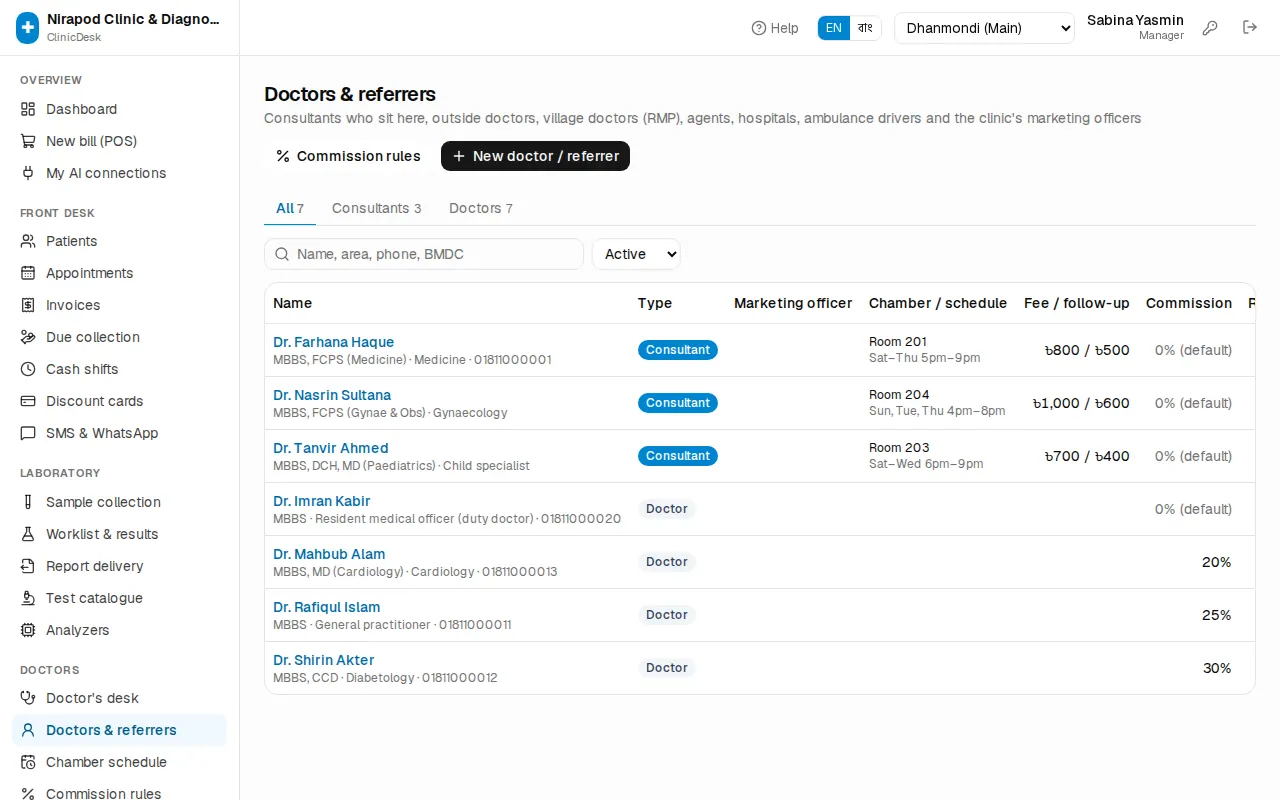
The tabs at the top (All, Consultants, Village doctors, Agents …) filter by type. Search by name, area, phone or BMDC number. Switch the Active box to Inactive to see people who have been switched off.
The table shows each person's Type, Marketing officer, Chamber / schedule, Fee / follow-up, Commission and Referred this month (bills, amount and commission). Click a name for the full page: earnings this month, referrals, chamber sittings, commission rules and upcoming appointments.
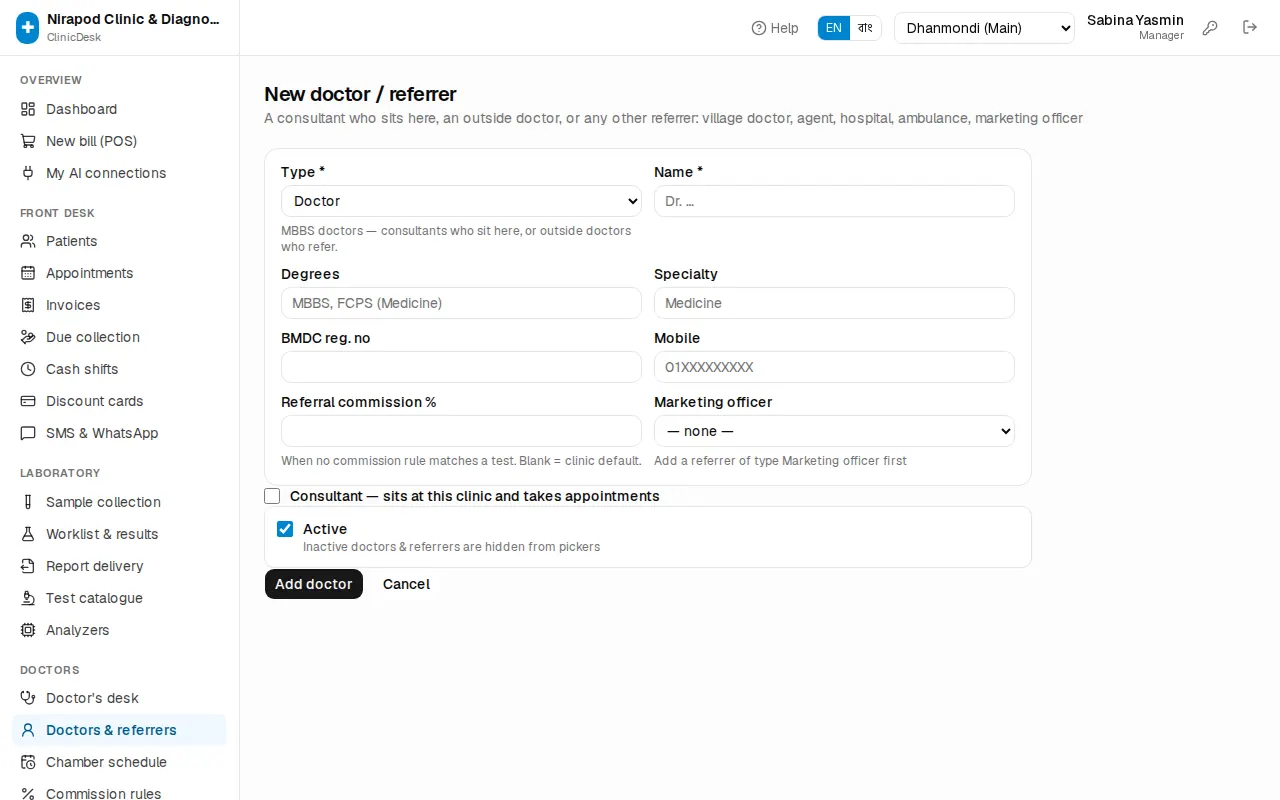
Adding a doctor or referrer
- Press New doctor / referrer.
- Choose the Type \*: Doctor for MBBS doctors; village doctor, agent and so on for others.
- Enter the Name \*. For a doctor add Degrees, Specialty and BMDC reg. no; for other referrers the area or organisation.
- Enter the Mobile number.
- Referral commission % — used when no commission rule matches a test. Leave it blank for the clinic default.
- To place a referrer under a marketing officer, pick the Marketing officer.
- If the doctor sits at this clinic, tick Consultant — sits at this clinic and takes appointments. More boxes open:
- Consultation fee (৳) and Follow-up fee (৳) (the follow-up fee is also used for report show).
- Doctor's share of fee % — the rest stays with the clinic.
- Chamber rent / month (৳) — deducted every month from what the clinic owes the doctor.
- Chamber / room and Schedule note (free text only; the bookable days and hours come from the chamber schedule).
- Doctor collects his/her own fee — check-in then records the visit without a clinic bill.
- Press Add doctor (or Add referrer).
To change something later, press Edit in the list and then Save changes. When someone stops working with you, do not delete them — untick Active. Inactive doctors and referrers disappear from the pickers, while old bills and accounts stay correct.
Chamber schedule
Open Doctors › Chamber schedule. Here you record which days, from what time to what time and in which room each consultant sits. Appointments can only be booked into these sittings; a doctor without sittings cannot be booked.
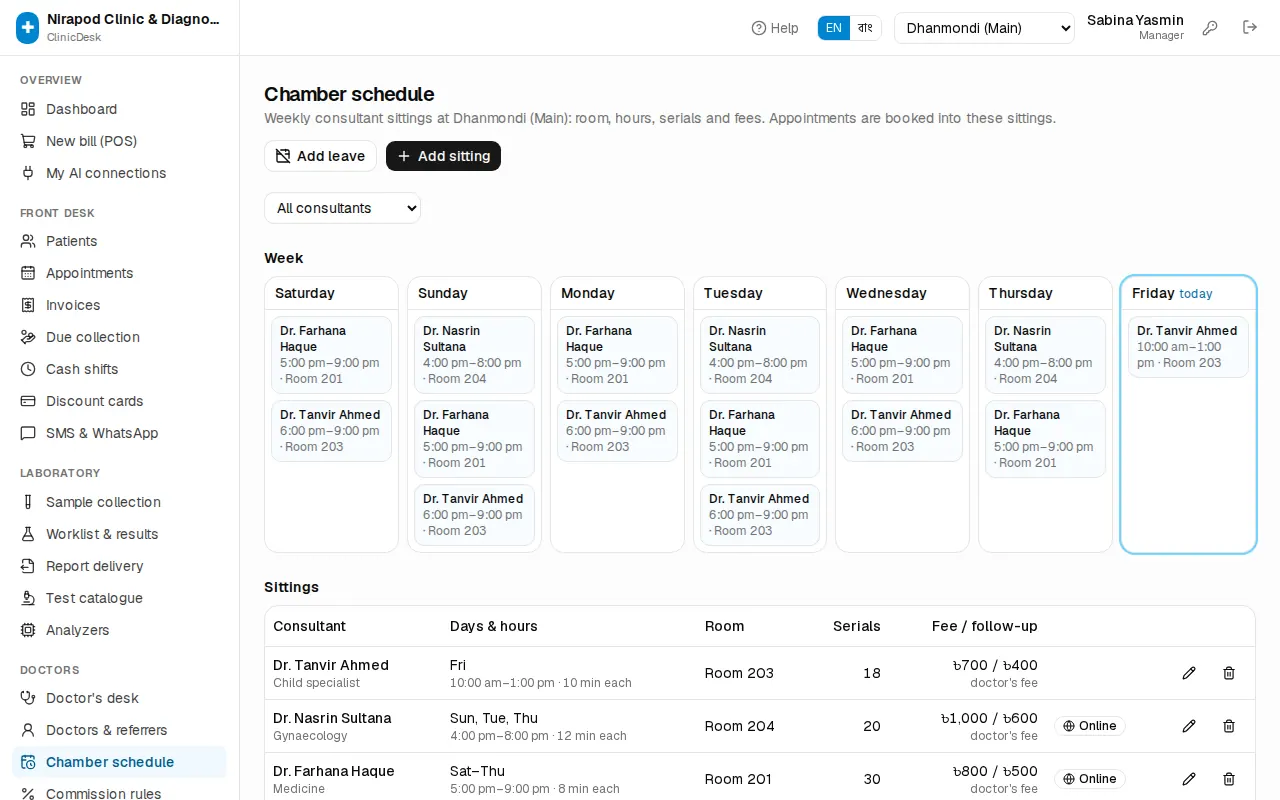
The Week section shows a card for each day, today ringed in blue. The Sittings table below has the details of each sitting.
Adding a sitting
- Press Add sitting.
- Choose the Consultant \*.
- Days \* — tick the days the doctor sits (for example Saturday to Thursday).
- Set Starts \ and Ends \.
- Enter the Room (for example Room 201).
- Minutes per patient — used for the expected time on the token.
- Max patients — leave blank to use hours ÷ minutes per patient.
- If this sitting has its own fee, fill Fee for this sitting (৳) and Follow-up fee (৳). Blank means the doctor's own fee.
- With Online booking ticked, patients can take a serial for this sitting from the clinic's public booking page (see Patient portal).
- Save. "Sitting added" confirms it.
The pencil icon in the table edits a sitting and the bin icon deletes it. To pause one, untick Active — inactive sittings cannot be booked.
Doctor leave
Record leave in advance so nobody is booked on days the doctor is away.
- On Chamber schedule, press Add leave.
- Fill Doctor \, From \ and To \*. Optionally add a Reason (for example a conference).
- Press Save leave.
- If patients are already booked on those days, a warning appears: Patients are booked on those days, with how many are booked and how many have already checked in and paid.
- Notify & cancel (followed by the number of patients) sends an SMS to everyone with a mobile number and cancels all those appointments.
- Only record leave keeps the appointments; you phone the patients yourself.
The Leave (today onwards) list shows all upcoming leave. The bin icon removes leave — but appointments that were cancelled are not restored. On a leave day the week card shows On leave today.
Who can do what
| Task | Who |
|---|---|
| See the Doctor's desk, record vitals | Doctor, nurse, manager, owner |
| Write prescriptions and finish the consultation | Doctor only (own patients) |
| Add and edit doctors / referrers | Receptionist, manager, owner |
| Chamber sittings and leave | Receptionist, manager, owner |
Booking appointments and checking patients in is covered in Reception & appointments.