Getting started
Getting started
What ClinicDesk is, how to sign in, what is where on the screen, switching language and branch, changing your password and which menus each role sees
Who it is for:OwnerManagerReceptionistDoctorLab technologistPathologistNurseAccountant
On this page
ClinicDesk runs a whole clinic, hospital or diagnostic centre in one place: the billing counter, patient registration, doctors' serials, lab samples and reports, admitted patients, accounts and staff salaries. This chapter covers the first-day basics so everyone on the team can start with confidence.
Signing in
ClinicDesk runs in a web browser (Chrome or Edge work best). The clinic owner creates an account for you; you sign in with your Mobile number and Password.
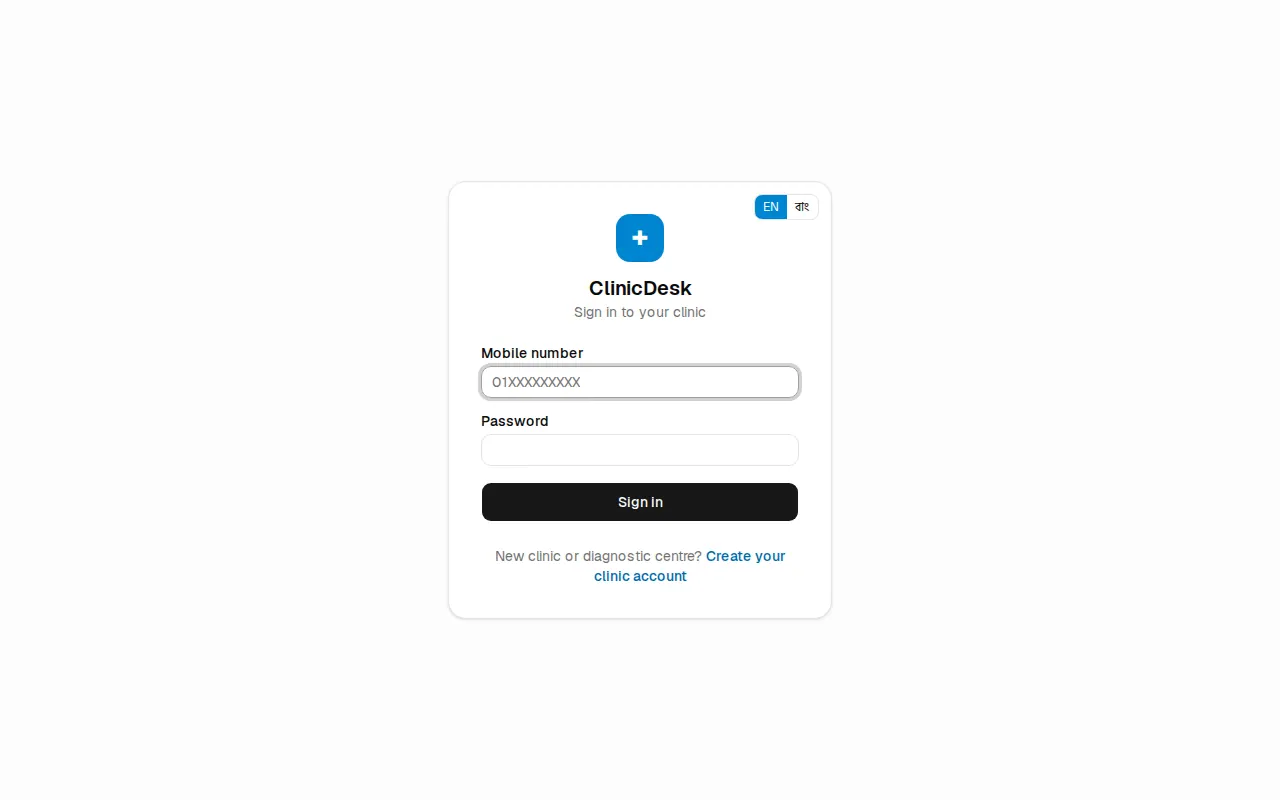
- Open your clinic's ClinicDesk address in the browser. The page says "Sign in to your clinic".
- Type your 11-digit number in Mobile number (for example
01XXXXXXXXX). - Type your Password.
- Press Sign in.
After signing in, each person lands on the page for their main job:
| Role | Page that opens after sign-in |
|---|---|
| Receptionist | New bill (POS) |
| Lab technologist | Worklist & results |
| Pathologist | Verification |
| Doctor | Doctor's desk |
| Owner, Manager, Nurse, Accountant | Dashboard |
The sign-in page has an EN | বাং switch in the top right corner, so you can pick the language before signing in.
The screen layout
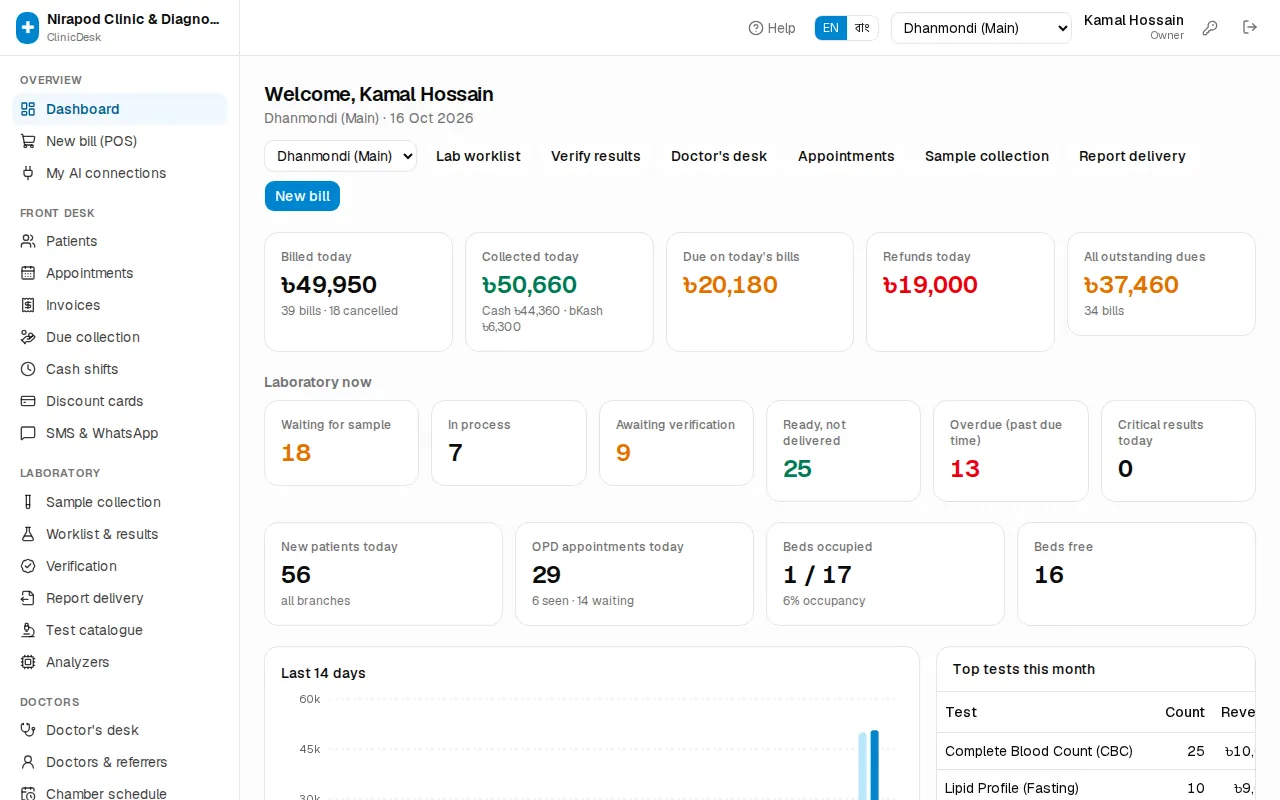
Left menu (sidebar): the clinic name at the top, then the menu in sections — Overview, Front desk, Laboratory, Doctors, In-patient (IPD), Finance, Staff (HR), Accounting, Admin. The page you are on is highlighted. Menus your role is not allowed to use are not shown at all, and modules that are not in the clinic's licence are hidden too.
Top bar (header), from right to left:
- Sign out — the door-shaped icon. Use it when you finish or leave the computer.
- Change password — the key icon. See Changing your password below.
- Your name and role (for example "Receptionist").
- The branch name, or a drop-down if you work in more than one branch.
- EN | বাং — the language switch.
- Help — opens the guide chapter for the page you are on, in a new tab, so a half-done bill is not lost.
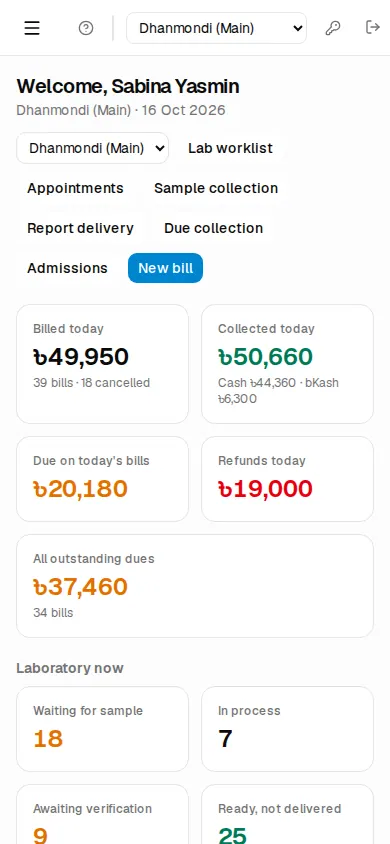
On a phone: the sidebar is hidden. Tap the three-line (☰) button at the top left to open the menu; it closes by itself when you pick a page.
Yellow banner at the top: when the licence has ended but is still in its grace days, a yellow banner says "Your licence has expired. ClinicDesk keeps working until (date); please renew." with a Details link. What to do is in Payments, licence & AI.
Reading the dashboard
The dashboard greets you with "Welcome, (your name)", the branch and today's date. The big blue button on the right is your role's main job — New bill for reception, Lab worklist for the lab, Verify results for the pathologist. The smaller buttons next to it open the other pages your role uses most.
- Money tiles (for those who can see bills or reports — reception, manager, accountant, owner): Billed today, Collected today (split by cash, bKash and so on), Due on today's bills, Refunds today and All outstanding dues.
- Laboratory now: Waiting for sample, In process, Awaiting verification, Ready, not delivered, Overdue (past due time) and Critical results today. Click a tile to open that lab page.
- New patients today, OPD appointments today, Beds occupied and Beds free.
- A Last 14 days collection chart, Top tests this month and OPD today by consultant.
Owners, managers and accountants who work across all branches also get a drop-down at the top; choose All branches to see the totals of every branch together.
Switching language
- Find the EN | বাং switch in the header.
- Press বাং for Bangla or EN for English.
The whole app changes at once. Your choice is saved on your account, so you see the same language on any computer. Staff who have never picked a language see the owner's Default language (Admin › Settings › Language). A few texts that have no Bangla translation yet still show in English.
Switching branches
If the clinic has more than one branch, each branch has its own bills, cash shifts, samples, appointments and wards. Patients and doctors are shared by all branches.
- Open the branch drop-down in the header.
- Pick the branch you are working in. The page reloads.
If you see just a branch name and no drop-down, the owner has tied your account to that one branch.
Changing your password
Everyone can change their own password.
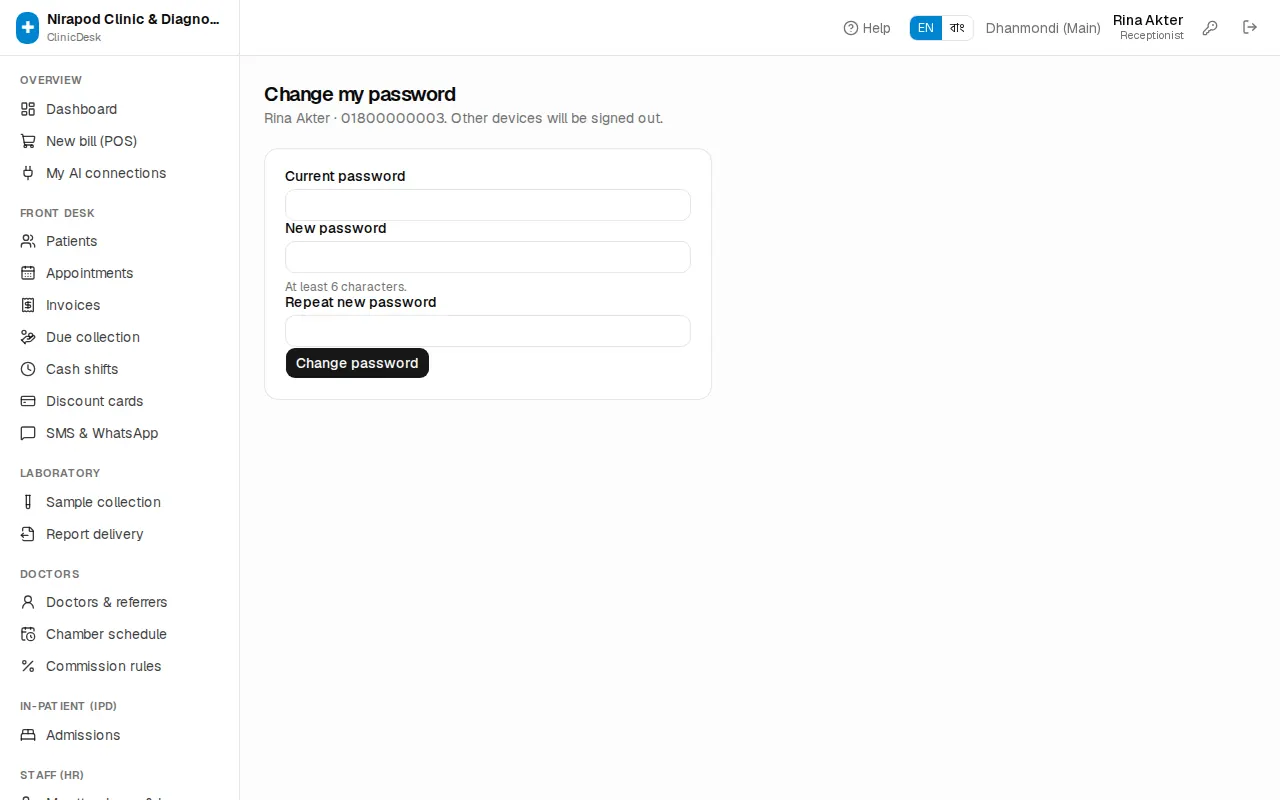
- Press the key icon in the header (or the Change my password link at the very bottom of the dashboard).
- Type your Current password.
- Type a New password — at least 6 characters.
- Type the same password again in Repeat new password.
- Press Change password. "Password changed" means it worked.
You stay signed in on this computer; every other device is signed out.
What each role sees
Every user has exactly one role. The role decides which menus appear and which buttons work.
| Role | Main work |
|---|---|
| Owner | Everything, including settings, users and online payments |
| Manager | Almost everything the owner does — cancelling bills, refunds, discounts above the cap, service prices, reports, audit log — but not settings or users |
| Receptionist | Patient registration, bills, due collection, appointments, discount cards, sample collection, report delivery, admissions, SMS |
| Lab technologist | Sample collection, worklist, entering results, report delivery |
| Pathologist | Entering and verifying results, test catalogue, analyzers |
| Doctor | Doctor's desk (own patients, prescriptions), viewing admitted patients |
| Nurse | Appointments and serials, sample collection, work on admitted patients |
| Accountant | Viewing invoices, due collection, expenses, doctor payouts, corporate billing, accounting, payroll, reports |
Every role can see their own attendance and leave (My attendance & leave). If a page shows No access, it is not meant for your role; ask the owner to change your role if you really need it.
Where to go next
- Owners: start with Owner setup.
- Reception: Reception & appointments and OPD billing & payments.
- Doctors: Doctors.
- Lab: Laboratory.
- Nurses: In-patients (IPD).
- Accountants: Accounting and Reports.
- When something goes wrong: Troubleshooting. Unfamiliar words: Glossary.