For patients
Patient portal & online booking
For patients — view and print your lab reports on your phone, pay a bill's due online, and book or cancel a doctor's serial from home.
Who it is for:PatientReceptionist
On this page
This chapter is for patients and their families. Without coming to the clinic you can do three things from a phone or computer:
- See, download and print your lab reports.
- Pay a bill's remaining due with bKash, Nagad or a card (if the clinic offers it).
- Book a doctor's serial online, check it, and cancel it.
You don't need an account or a password. For reports you only need your money receipt; for a serial, your mobile number.
What to look for on your receipt
After you pay for tests, the money receipt you get at the counter has a box near the bottom with:
- Report delivery — when your reports should be ready.
- Online report PIN — a 6-digit number, for example
482913. - The web address for viewing reports.
Near the top of the receipt is the Bill number, for example INV-000123. You need both the bill number and the PIN to see your reports. Keep the receipt safe and don't share the PIN.
When all the tests on a bill are ready and checked, the clinic may send you an SMS with the report link and your PIN. Tap the link to open your clinic's report page, then enter the bill number and PIN.
Viewing your report online
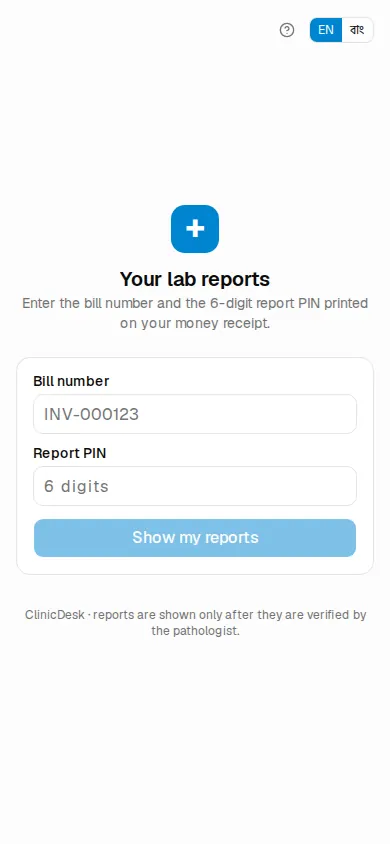
- Open the address from your receipt or SMS in a browser. The page is called Your lab reports.
- You can switch language with EN / বাং at the top right.
- In Bill number type the number from your receipt, for example
INV-000123. Just the last digits (123) also work. - In Report PIN type the 6-digit PIN.
- Press Show my reports.
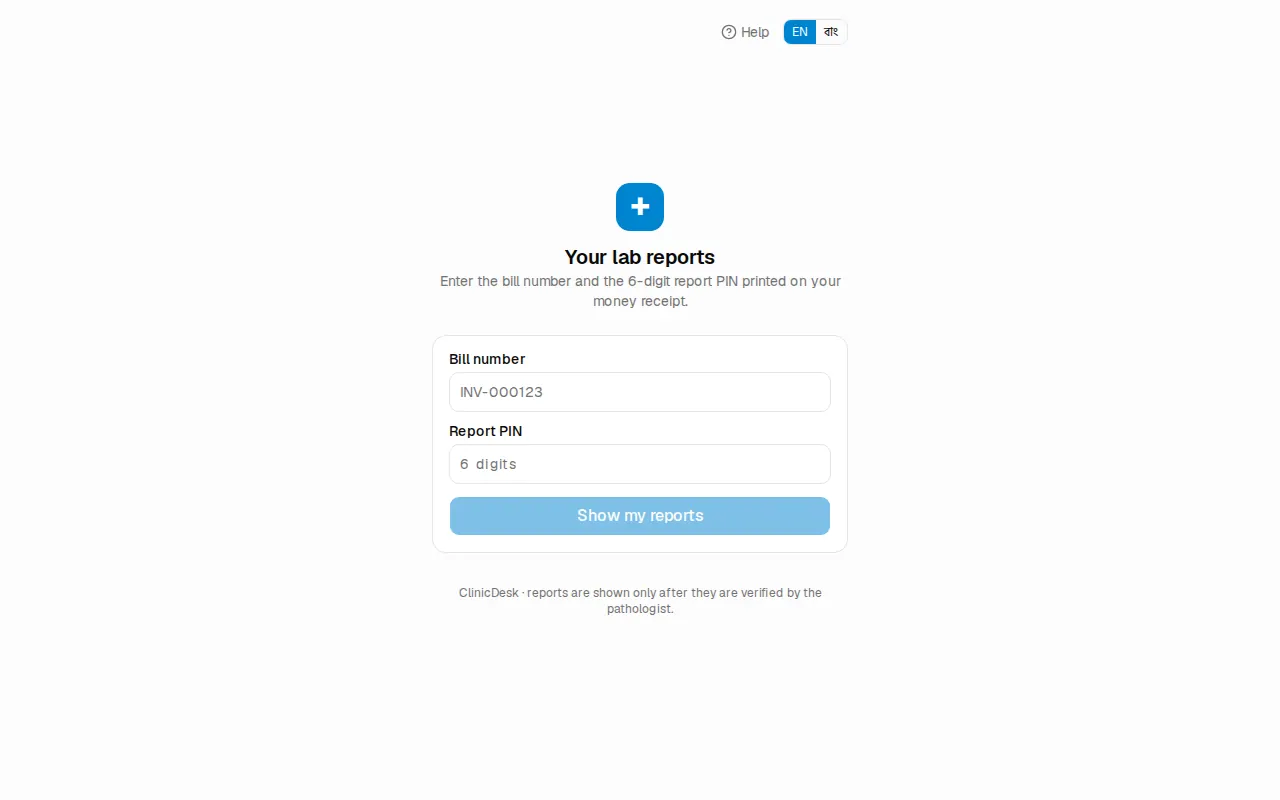
You will see your name, the bill number and the status of each test:
| It says | Meaning |
|---|---|
| Awaiting sample | The blood, urine etc. has not been taken yet |
| Sample collected | The sample has been taken |
| Processing | The test is running in the lab |
| Awaiting verification | The result is entered but the doctor (pathologist) hasn't checked it yet |
| Ready | The report is ready to view and print |
As soon as at least one test is Ready, a View / print ready reports button appears. Press it to open the full report.
Printing or saving as PDF
- On the report page press Print / save PDF at the top.
- If you have a printer, choose it and print.
- To keep a file, choose Save as PDF instead of a printer. On a phone it usually says "Download" or "Save".
- Press Back to return.
The report looks exactly like the paper report, A4 size. On a phone, scroll sideways to see all of it, or save the PDF and open that. You can show this PDF or printout to your doctor.
If your report doesn't show
- "No report found for that bill number and PIN": check the bill number and PIN again. The PIN must be exactly 6 digits.
- "Your reports are not ready yet. Please check again later.": reports come online only after the pathologist has checked them. Try again after the Report delivery time on your receipt.
- A due on the bill: some clinics release reports only after full payment. You will then see "Please clear the due of ৳… at the counter to receive your reports." Pay online as described below, or at the counter.
- "Too many attempts. Please wait 15 minutes and try again.": after many wrong tries the page locks for a while, for your safety.
- "Online services paused": the clinic's online services are paused for now. Your reports and bills are safe; collect them from the counter.
Paying a due online
If the clinic offers online payment and the bill has a due, a blue box appears under the test list: Due on this bill: ৳….
- Press the way you want to pay: Pay with bKash, Pay with Nagad or Card / mobile banking. Only the ones your clinic offers are shown.
- The secure page of bKash, Nagad or the payment gateway opens. Finish the payment there with your number, OTP and PIN.
- You are brought back to the report page.
Back on the page you will see in green: "Thank you, your payment was received. The money receipt has been added to your bill." Press Show my reports again to see your reports.
If you cancel or the payment fails, a yellow message says "The payment did not go through. Nothing was charged to your bill. You can try again."
Booking a doctor's serial online
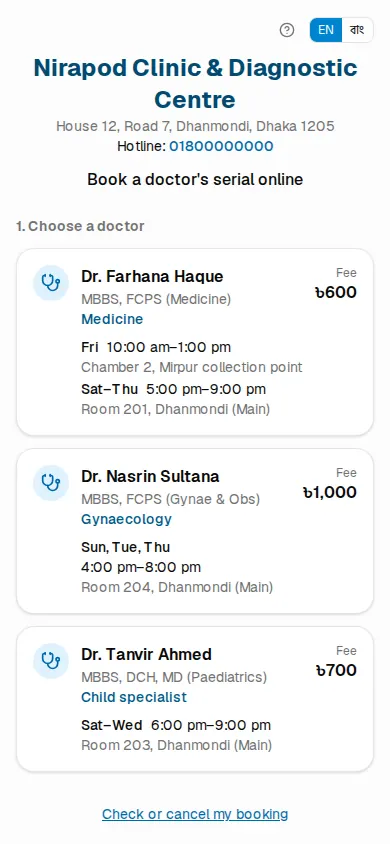
If the clinic has online booking turned on, it has a booking page (the clinic will give you the address; it ends in something like /book/clinic-name). The top shows the clinic's name, address and Hotline: number.
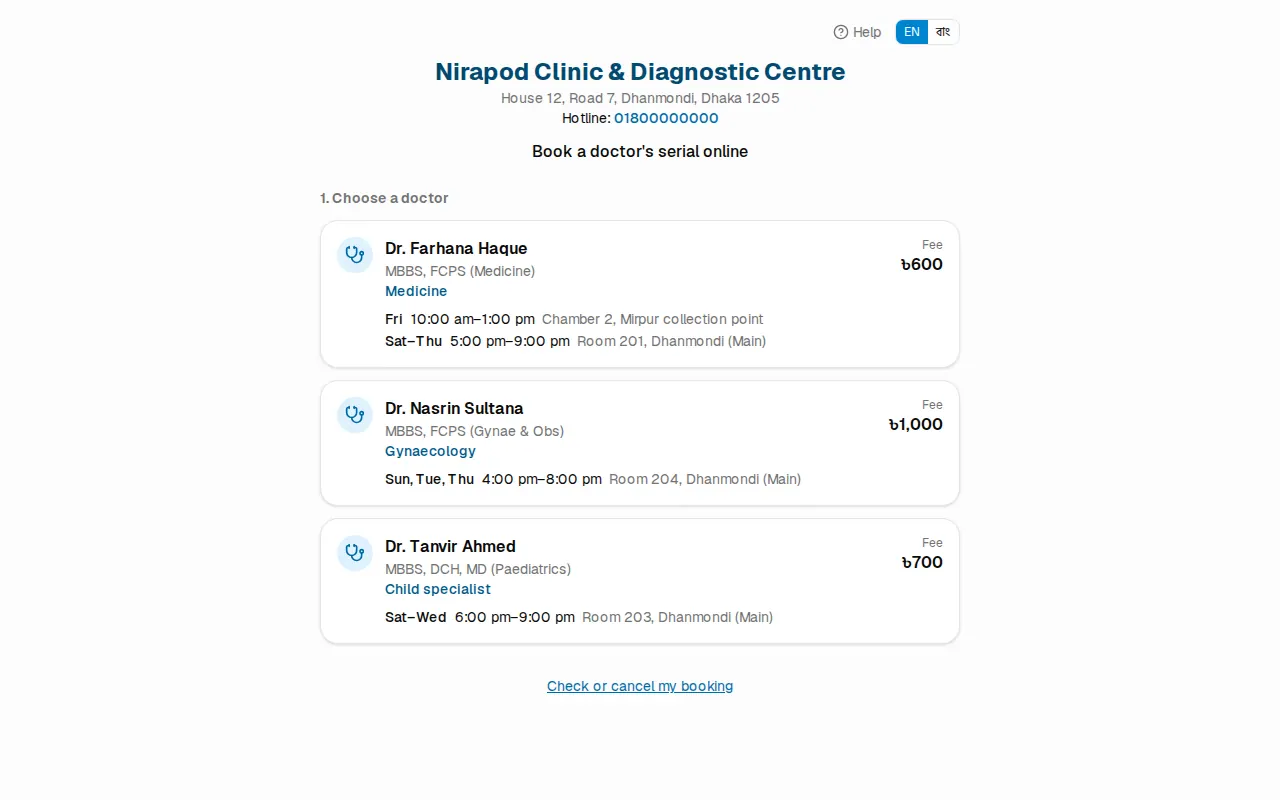
- 1. Choose a doctor — tap the doctor's name. Each doctor shows degrees, speciality, which days and times they sit, and the Fee.
- 2. Choose a day — the chamber days for the coming days are shown, each with the time, room and N serial(s) left. Days marked Full can't be chosen.
- 3. Patient details — fill in Patient's name, Mobile number, Sex (Male / Female) and Age (years).
- Choose the Visit: New patient, Follow-up or Show reports.
- Press Book serial · (day).
The Your serial is booked page shows your serial number in large type, with the doctor, date, Expected time, room and an 8-character Reference. Take a screenshot of this page. You will also get an SMS confirmation.
To book for someone else press Book another.
Checking or cancelling your booking
- At the bottom of the booking page press Check or cancel my booking (right after booking there is also a Check or cancel button).
- Type the Mobile number you booked with and the Booking reference.
- Press Find my booking.
You will see your serial number, the date and the status — Booked, Checked in, With the doctor, Done, Cancelled or Missed.
To cancel, press Cancel booking and confirm. The serial is released for another patient. Once you have checked in at the counter you can no longer cancel online — tell the counter instead.
If booking doesn't work
- "Today's chamber is already over. Please pick another day." — choose another day.
- "Enter a valid Bangladeshi mobile number (01XXXXXXXXX)" — use your 11-digit number.
- Too many bookings for the same number with the same doctor, or many tries in a short time, are blocked. Call the clinic instead.
- If it says "No doctors are taking online bookings right now" or "Online booking unavailable", call the hotline to book.
For reception: what to tell patients
- When you hand over a test bill, point to the Online report PIN and the address on the receipt: "You'll get an SMS when the report is ready; see it on your phone with this number and PIN."
- If a patient lost the receipt, open their bill and reprint it — the PIN is on it (OPD billing & payments).
- If a patient says "my report isn't showing", check in the lab whether the tests are verified (Laboratory). If there is a due, collect it or ask them to pay online.
- A patient who booked online is already on the appointment list; just check them in and take the fee (Reception & appointments).
- The portal, online booking and Full payment before delivery are switched on or off by the owner or manager in Settings (Owner setup). Payment gateways: Online payments, licence & AI.