Front desk & billing
SMS & WhatsApp
Which messages go to patients automatically, the SMS gateway, the message log, retrying, writing your own message, bulk due reminders and WhatsApp links.
Who it is for:OwnerManagerReceptionist
On this page
ClinicDesk sends patients the news they need by SMS or WhatsApp — report ready, serial booked, money due. Every message is kept in a log, so you can always see what went to whom and when.
In the sidebar: Front desk › SMS & WhatsApp. Receptionists and managers can see the log and send messages; the owner sets up the gateway.
What is sent automatically
| Event | When it goes |
|---|---|
| Report ready | When every test on a bill is verified — with the online report link and PIN |
| Appointment booked | When a serial is booked — doctor, date, serial and expected time |
| Appointment reminder | The evening before the appointment |
| Appointment cancelled | When a serial is cancelled |
| Due reminder | Only when you send it (to one patient or many at once) |
Nothing is sent to a patient without a mobile number. Which events send a message, and in which language (English or Bangla), is set by the owner in the Automatic messages part of Admin › Integrations: Report ready, Appointments, Due reminders and Message language.
The SMS gateway
The gateway is your account with an SMS company (for example SSL Wireless or BulkSMSBD). The owner fills in Provider, Sender ID / SID and API key / token in the SMS gateway part of Admin › Integrations and presses Save messaging settings. Then Send a test to your own number to check it. Details: Payments, licence & AI.
Without a gateway nothing stops: messages are still written to the log (Not sent (no gateway)), and you can send them by hand through the WhatsApp link. The messages page then shows a yellow note: No SMS gateway is set up, so messages are logged but not sent.
The message log
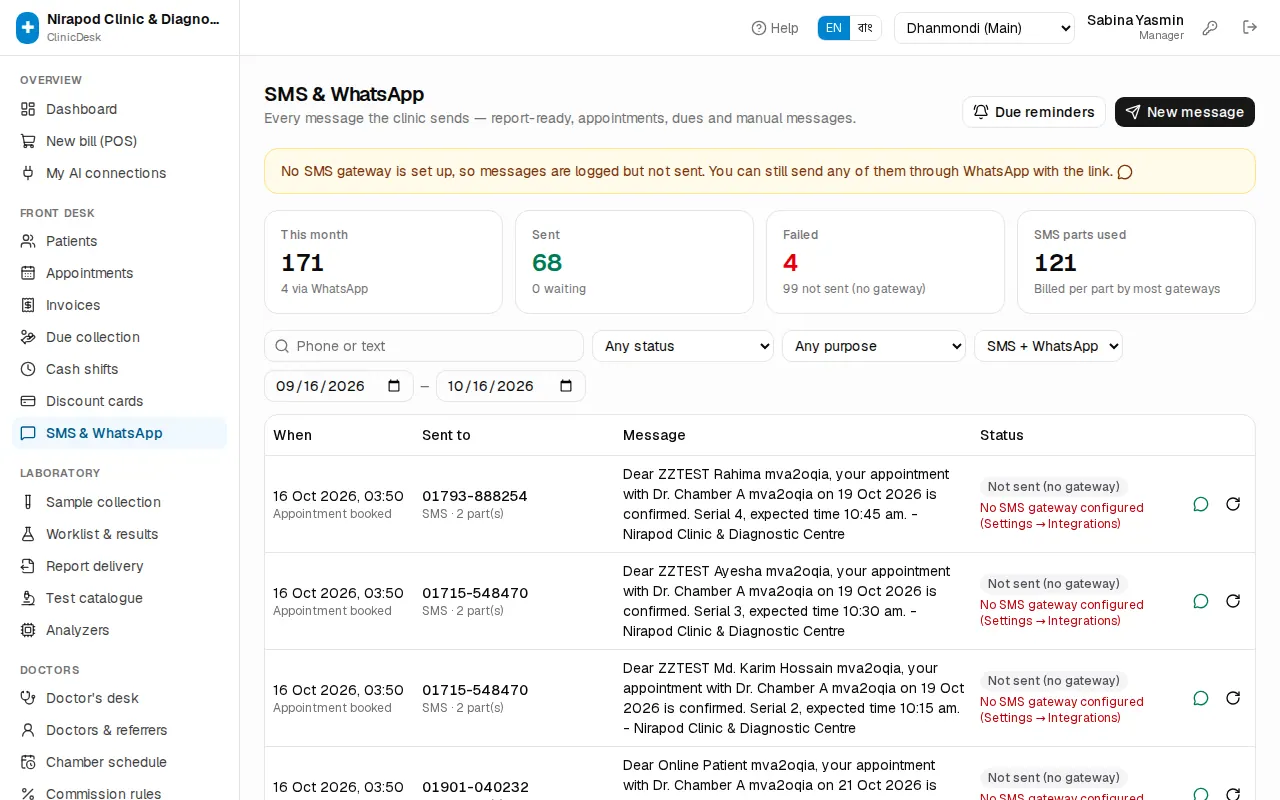
The top shows this month: This month (total), Sent, Failed and SMS parts used (billed per part by most gateways).
To search and filter:
- Phone or text — a number or any word in the message.
- Any status — Queued, Sending, Sent, Failed, Not sent (no gateway), Draft (not sent), Discarded.
- Any purpose — Report ready, Appointment booked, Due reminder, Manual and so on.
- SMS or WhatsApp, and the date range (the last 30 days by default).
Each row shows When, Sent to (number of parts, and a bill or patient link), the full Message and the Status. Failed messages show the reason in red.
Retrying a failed message
When the gateway has a problem, the system retries failed messages by itself after a while. To retry straight away:
- Choose Failed in the status filter.
- Press the Retry now icon at the right of the row. You see "Sent" when it works.
Messages written with an AI assistant arrive as Draft (not sent) — they never go out until a person sends them. Use the icons next to them: Send this draft now or Discard this draft.
Sending your own message
- Press New message.
- Choose Patient (search and pick) or Any number. A wrong number shows Not a valid Bangladeshi mobile number.
- Write the Message — in English or Bangla. Below it you see the number of characters and SMS parts.
- Choose SMS or WhatsApp (API) (when the WhatsApp API is set up).
- Press Send. Or press Open in WhatsApp to open WhatsApp on this computer or phone with the text filled in — no API needed.
Due reminders in bulk
- Press Due reminders.
- Enter the Minimum due (৳) and Bill older than (days).
- The dialog shows how many patients and how much due, how many have no mobile number, and how many were already reminded today.
- Press Send … reminder(s).
Each patient gets one SMS with their total due on this branch's open bills. Patients reminded in the last 24 hours are skipped. To remind one patient, use the Remind button on the Due collection page (OPD billing & payments).
WhatsApp links
The green WhatsApp icon on every log row (Open in WhatsApp with this text) opens a chat to the patient's number with the same text filled in. When there is no gateway, or an SMS failed, send it this way by hand — no setup needed.