Doctors, lab & IPD
In-patients (IPD)
Admitting a patient, the bed board, setting up wards and beds, bed transfer, daily charges, advance and payments, ward notes, discharge and the final bill.
Who it is for:NurseReceptionistDoctorManagerOwner
On this page
Everything from admitting a patient to discharging them happens in the In-patient (IPD) part of the sidebar. The moment you admit someone, ClinicDesk opens a running bill in their name. Bed rent, medicines, tests and doctor visits all go on that bill, and at discharge it becomes the patient's final bill.
Who can do what:
| Task | Who |
|---|---|
| See the bed board and admission pages | Manager, receptionist, nurse, doctor, accountant, owner |
| Admit, add charges, transfer bed, discharge | Manager, receptionist, nurse, owner |
| Write ward notes | All of the above, and doctors |
| Set up wards and beds | Manager, owner |
| Cancel an admission | Manager, owner |
The bed board
In the sidebar open In-patient (IPD) › Admissions. The page is called In-patients and opens on the Bed board tab.
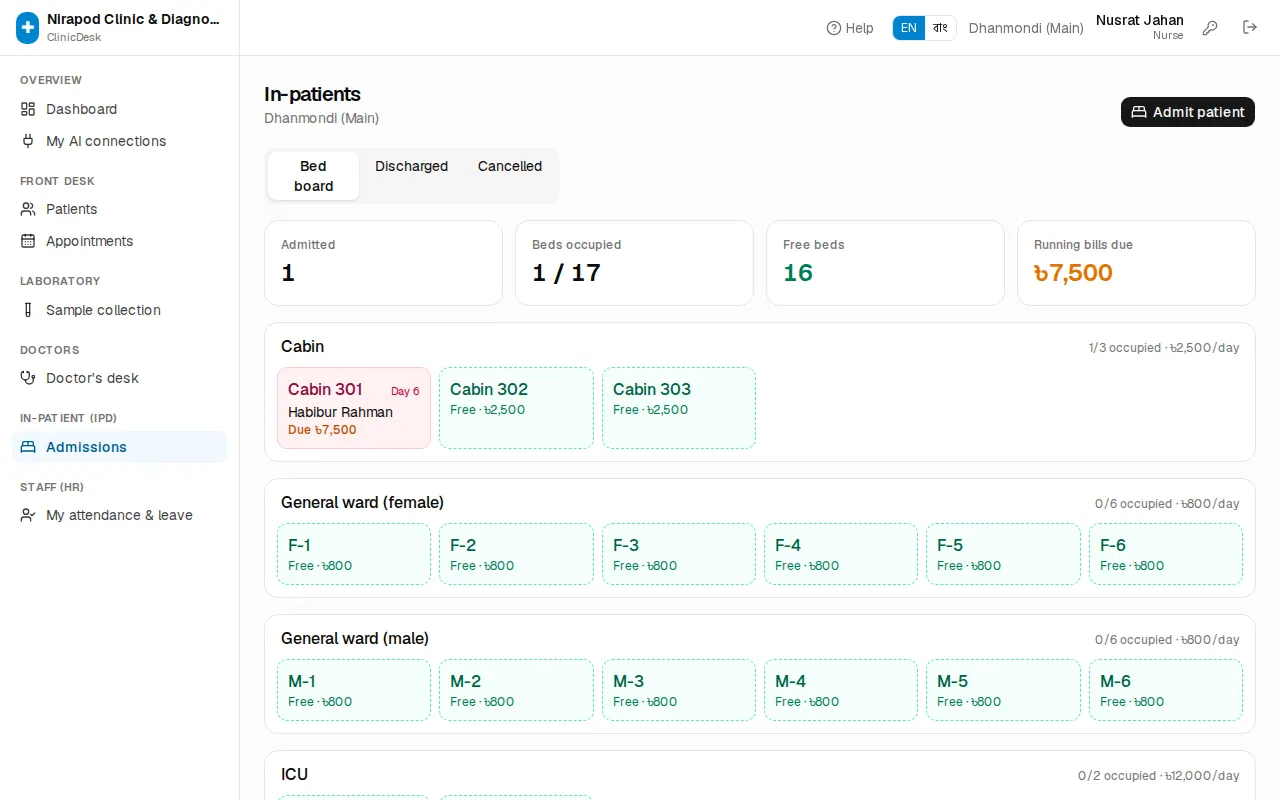
- The four boxes at the top show Admitted (how many patients are in now), Beds occupied (for example 7 / 20), Free beds and Running bills due (the total due of all admitted patients).
- Each ward has its own box, with how many beds are occupied and the daily rate.
- A green bed is free and says Free · ৳…. Click it to open the admission form with that bed already chosen.
- A red bed is occupied. It shows the bed label, the day of the stay (for example Day 3), the patient's name and Due ৳… or No due. Click it to open that admission.
- Below, Current admissions lists admission no., patient, bed, consultant, admission date, bill and due in one table.
The page refreshes itself every minute, so you can leave it open on the nurses' station screen.
To find past stays use the Discharged or Cancelled tabs. You can search by admission no., patient name, MRN or phone, and change the date range.
Setting up wards and beds
A manager or the owner does this once at the start. On the In-patients page press Wards & beds (or use Wards & beds in the sidebar).
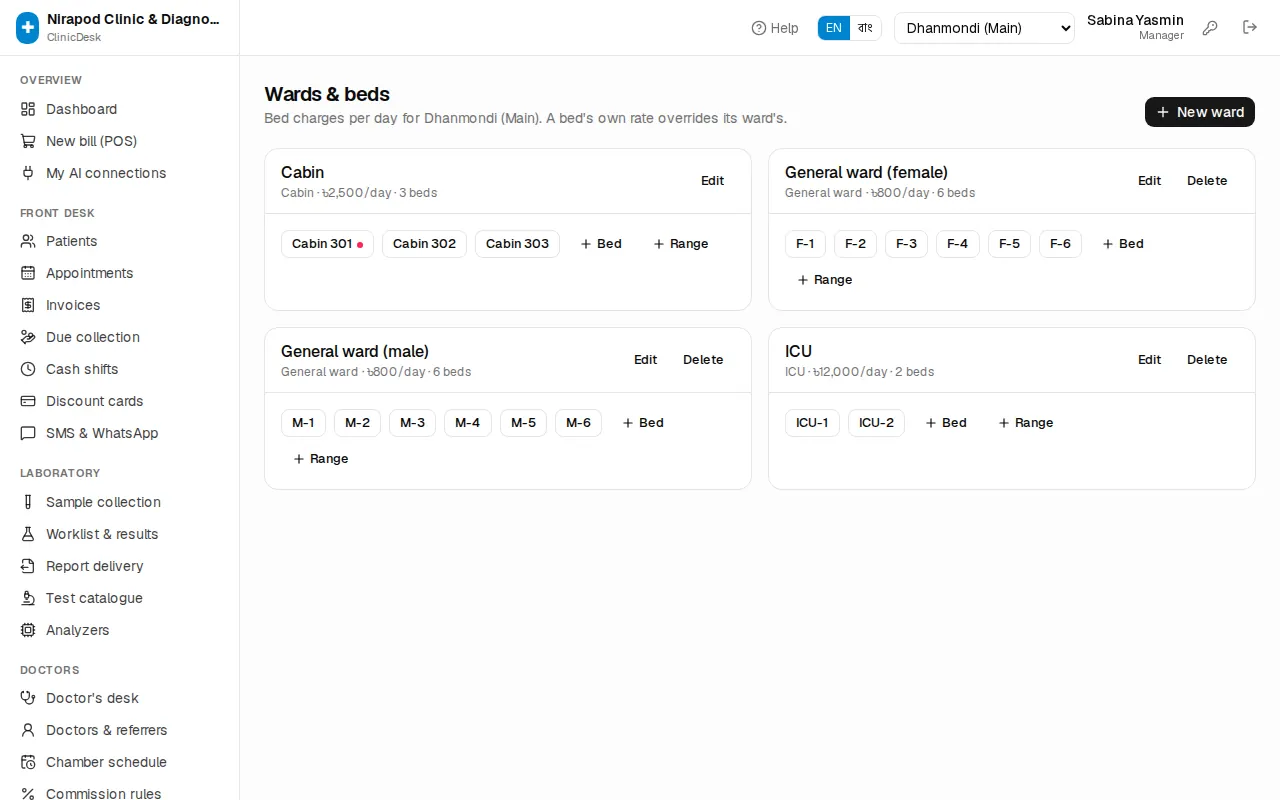
A new ward
- Press New ward.
- Type the Name, for example "Male ward" or "Cabin block 3rd floor".
- Choose the Kind: General ward, Cabin, ICU, NICU or HDU.
- Enter the Daily rate (৳). Every bed in the ward uses this rate unless it has its own.
- Save.
Adding beds
- One bed: press + Bed in the ward's box. Type the Label (for example
M-7orCabin 304). For a different price fill in Own daily rate (৳); leave it blank to use the ward rate. - Many beds at once: press + Range. Give a Label prefix (for example
M-), From and To. 1 to 10 creates ten beds, M-1 to M-10. Up to 100 at a time.
Click a bed's button to change its label, rate or Active setting. A bed with a patient in it has a small red dot.
Admitting a patient
- On the In-patients page press Admit patient, or click a green free bed on the bed board.
- In Patient type a name, phone or MRN and pick the patient. A new patient must be registered first (see Reception & appointments).
- Choose the Admitting consultant.
- Pick a free bed in Bed. Each bed shows its daily rate.
- Optionally fill in Reason for admission, Provisional diagnosis, Attendant name and Attendant mobile. The attendant's number is very useful in an emergency.
- If you take an advance, enter it in Advance received (৳), choose the Method (Cash, bKash, Nagad, Rocket, Card, Bank) and, if needed, put the bKash TrxID in Ref..
- Press Admit patient.
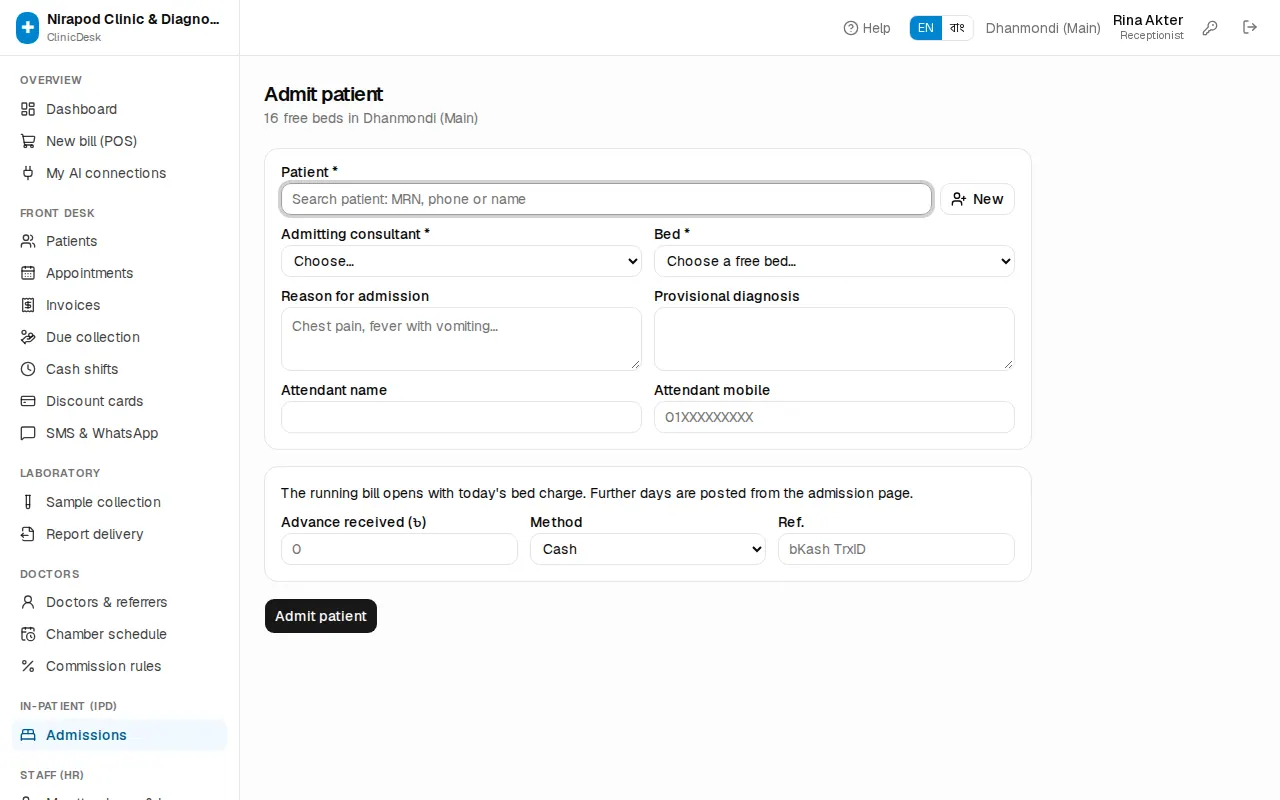
You will see "Admitted · ADM-000012" and the admission page opens. As the form says, the running bill opens with today's bed charge; each following day's bed rent is added automatically overnight.
The admission page
Click a red bed on the bed board, or an admission no. in Current admissions.
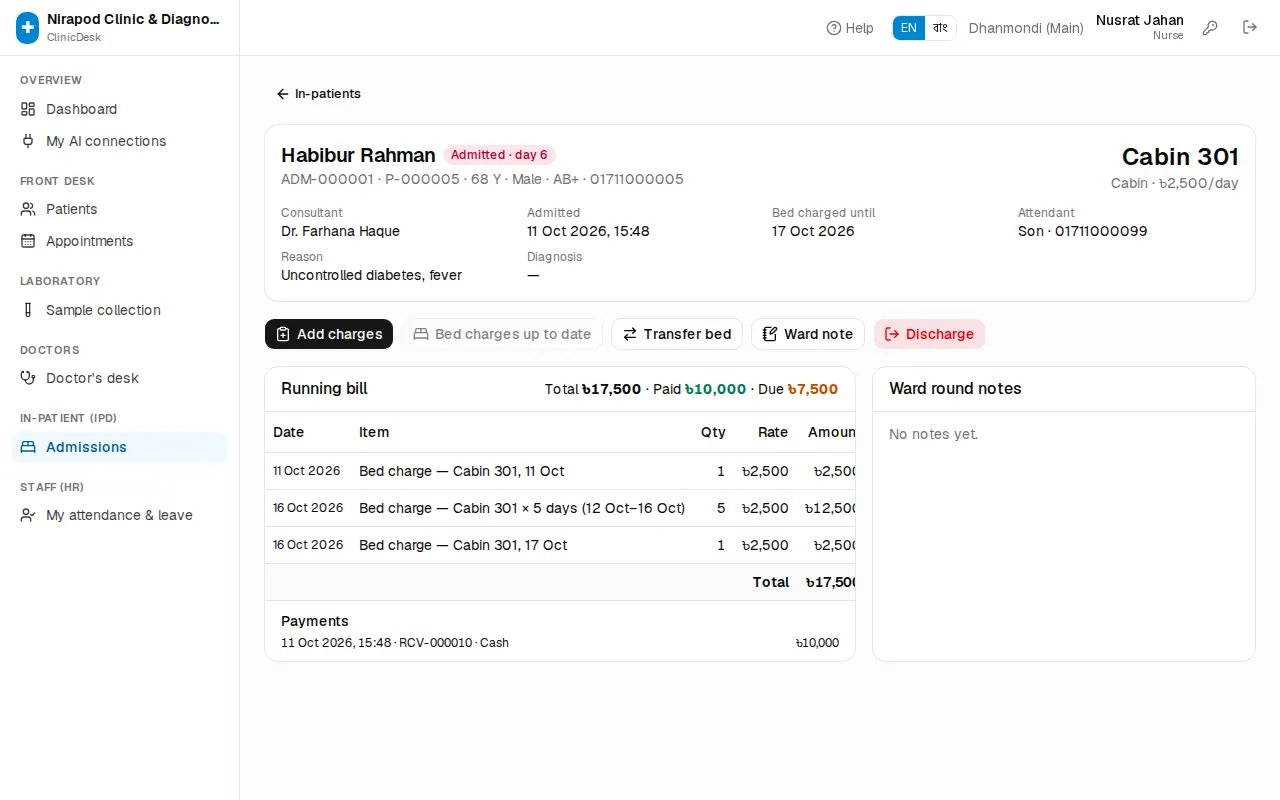
- At the top: the patient's name, an Admitted · day N label, admission no., MRN, age and phone. On the right, the bed label in large type with its rate.
- If the patient has allergies on record, a red line shows Allergies: — always check it before giving medicines.
- Consultant, Admitted, Bed charged until, Attendant, Reason, Diagnosis.
- Bottom left: the Running bill, every charge with its date, and above it Total · Paid · Due. Below that, the Payments list.
- Bottom right: Ward round notes.
- The bill-number button (INV-…) opens the normal invoice page, where you can print the bill.
Daily charges
Bed rent
Bed rent is added to the running bill automatically: every night, just after midnight, ClinicDesk posts the new day's bed charge for every admitted patient at the bed's daily rate. If a night was missed, the next run adds all the missing days in one line — no day is charged twice.
You can still post it yourself, for example before printing a bill in the evening:
- On the admission page look at the Post bed charges (N days) button. N is the number of days not yet on the bill.
- Press it. You will see "N bed-day(s) posted".
- When everything is posted the button reads Bed charges up to date and can't be pressed.
If the bed board shows a yellow box Bed charges not yet posted for N admission(s), the nightly posting hasn't run for those patients. Open each admission listed and press Post bed charges, and tell JonakiSoft support if the box keeps coming back.
Medicines, tests, procedures, doctor visits
- Press Add charges. The Add to running bill window opens.
- In the search box type a procedure, test, medicine, oxygen and so on, and pick it. You can add several items at once.
- Set the quantity on each line. If a service has a zero price in the catalogue, type the price.
- For a doctor's visit (a consultation) choose the doctor under the line and type the Doctor's fee.
- Press Add to bill.
Lab tests added here are sent to the lab automatically — there is no separate lab order. Sample collection to report is in the Laboratory chapter.
If your pharmacy is linked through PharmaDesk, medicines the pharmacy sells to an admitted patient land on the running bill by themselves as "Medicines — pharmacy …". Details: Pharmacy link.
Moving to another bed
- On the admission page press Transfer bed.
- In Transfer to another bed choose a free bed.
- Press Transfer. You will see a message like "Moved to M-3".
Unbilled days up to today are charged at the old bed's rate first; the new bed is charged from tomorrow. So if a patient moves from the general ward to a cabin, today stays at the ward price.
Ward round notes
Nurses and doctors can both write notes.
- Press Ward note.
- Enter the vitals you measured: BP sys, BP dia, Pulse, Temp °F, SpO₂ %, weight.
- Write the patient's condition in Note / findings.
- Write the next instructions in Orders / plan (for example "Continue IV fluid, repeat CBC tomorrow").
- Press Save note.
The note appears at the top of the list on the right with the time. Notes written by a nurse show "(nurse)" after the name. You can't save a note that has neither text nor vitals.
Advance and payments
You can take an advance while admitting (see above). To take money later:
- On the admission page press Collect payment. It is greyed out when nothing is due.
- Amount (৳) is filled in with the full due. Change it for a part payment.
- Choose the Method. For anything other than cash, type the Transaction ref..
- Press Receive. A message shows the money-receipt number and the payment is added to the list.
Only staff allowed to collect money see this button (usually the front desk and managers). Cash you receive is counted in your cash shift.
Discharge and the final bill
- Collect the remaining due first (Collect payment).
- Press the red Discharge button. The Discharge patient window opens.
- Fill in the Final diagnosis (the admission diagnosis is already there).
- Optionally fill in Treatment given / hospital course, Condition at discharge, Follow-up, Medicines on discharge and Advice.
- Check the bottom of the window: how many unbilled bed-days will be posted first, and the Current due.
- Press Discharge & print.
Unbilled bed rent is posted automatically, the bed is freed, and the Discharge summary opens in a new tab for printing. It has the patient's details, what you wrote, and the whole bill (items, discount, total, paid, due) — this is the patient's final bill.
To print it again later, open the stay from the Discharged tab and press Discharge summary.
Cancelling a wrong admission
If the wrong patient was admitted, or the patient left before treatment started, a manager or the owner can cancel the admission.
- On the admission page press Cancel admission.
- Type the Reason (for example "wrong patient").
- If money was taken, Refund ৳… via is ticked — choose the refund method.
- Press Cancel admission.
The running bill and its lab orders are cancelled and the bed is freed. The stay remains on the Cancelled tab with its reason.
Common problems
- No free beds: if the admission form says "No free beds", discharge someone first or ask a manager to add beds.
- I can't see the buttons: Add charges, Discharge and the others only show for an admitted patient and for staff with permission. Doctors and accountants can only view the page (doctors can write notes).
- The due looks too high: check that the advance was entered with the right method and appears in the payments list.
- Figures for management: the IPD admissions & bed occupancy report in Reports.